

.
If you’re an Android user, you may be used to being able to close all apps at once from the app switcher. If you recently switched to iOS, you may be wondering how to do the same on your iPhone.
It might come as a shock to you that iPhones do not have a way to quit all apps at once. Instead, you have to close each app individually, one by one.
But why is that? And what are your options if you do want to close all apps? Read on for the full scoop.
Why Doesn’t iPhone Have a “Close All Apps” Option?

While you may think that closing all apps is necessary, this isn’t usually true.
According to an email from Craig Federighi, senior vice president of software engineering at Apple, there’s no need to close all apps.
While you may think that apps displayed in the App Switcher are running in the background, that’s often not the case. Instead, they are frozen, and they are displayed in the App Switcher just for consistency, so you can easily go back and use apps you recently used.
In fact, Apple’s official support documentation says the same. Apps only stay active for a short amount of time, after which they switch to a suspended state. Once they switch to a suspended state, they are no longer actively in use or even consuming system resources.
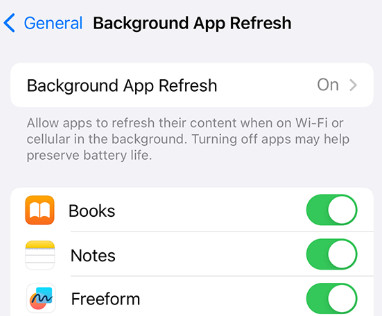
However, there is a caveat to that. If Background App Refresh is turned on, suspended apps can still check for updates in the background. This can consume some battery, as well as data.
In fact, closing all apps can sometimes do more harm than good. If you use the app frequently, you will need to launch the app from scratch if you use it again. This can consume more resources and battery, because the app will need to start up from the beginning and check for updates. If you left it in its suspended state, it would be able to check for updates while using minimal resources, as iPhones are very good at managing RAM by themselves.
Nevertheless, there may be times when you would want to close all apps. If your phone is frozen or glitching, closing all apps can help you unfreeze it. If you are on low battery and need to save as much battery as possible, or if you want to avoid using extra data, you may want to close all apps to avoid any background activity.
Here is how to do that.
Open the App Switcher and Swipe Up
To close apps, first open the App Switcher. On most iPhones, swipe up from the bottom of the screen and hold your finger in the middle until the App Switcher appears. On iPhones with a Home button, though, double-press the Home button to open the App Switcher.
Once you are in the App Switcher, simply swipe an app up towards the top of the screen to close it. Continue swiping up on all apps until you close all apps.
Close Multiple Apps Faster With Multi-Finger Swipes
To do this a little faster, you can use multiple fingers to swipe multiple apps up simultaneously. This should allow you to close multiple apps a little quicker. However, you still can’t close all apps in one go.
When You Should (and Shouldn’t) Force-Quit
In general, closing all apps isn’t really necessary most of the time. You should only forcefully close an app if it is crashing or freezing or rapidly draining battery, as closing an app often fixes frozen apps.
Most of the apps in the App Switcher are not active in the background and are just displayed in the App Switcher so you can easily open them again.
Instead, the best practice to reduce battery drain and background activity is to turn off Background App Refresh. To do that, go to Settings > General > Background App Refresh and turn it off. Once you do that, suspended apps will no longer search for updates in the background, helping you to preserve background energy. You can also turn it on for only specific apps.
Things That Won’t Close All Apps (Avoid Myths)
Unfortunately, there is no built-in shortcut method or any other hidden iOS setting that truly closes all apps. This is just a limitation of iOS compared to Android. I also do not recommend trying to jailbreak your phone to make this possible, as jailbreaking comes with risks, including significant security risks.
Quick Note: Safari Tabs Aren’t Apps
Safari tabs are not apps, and you can actually close all Safari tabs at once for more efficient tab management. To do that, open Safari and long-press on the tabs icon in the bottom-right corner. Then, click on Close All [X] Tabs to close all tabs.
Conclusion
I hope these App Switcher tips were useful! Closing multiple apps isn’t always necessary, but it is an important troubleshooting step when your iPhone is glitching or misbehaving. However, to better preserve iOS battery health, I instead recommend turning off Background App Refresh to avoid using unnecessary resources in the background.
Related posts:
 How To Choose An External Microphone For Iphone?
 How to Get Your Screen Protector Sparkling Clean
 How to Close Apps on Your iPad Pro
 How To Choose The Best 10 ft Apple Charger?
 How To Clear Your Gmail Inbox On iPhone
 How to Clear Your YouTube Cache and Speed Up Your Browsing
 How to Maximize Your Calorie Burn with Apple Watch
 How to Print Wirelessly From iPhone?
