
By enabling WSD on your printer, you are allowing your Windows computer to discover it over the network.
WSD (Web Services for Devices) allows printers and other devices to be discovered by computers over the network, allowing for features such as wireless printing. In this guide, I will show you how to enable WSD on your printer and allow your Windows 10 or 11 device to discover your printer and print to it via network scanning. Let’s get into it!
Prerequisites: Same Network and Access
First, for WSD to work, both devices need to be connected to the same LAN (Local Area Network). This is easily achieved by connecting both to the same Wi-Fi network.
Another option is using Ethernet cables. For example, connect both devices to the LAN ports on your router using Ethernet cables.
You will also need to be able to access the printer’s network administration or web UI page and have admin access to it. This is typically achieved by logging into the printer’s IP address by entering the IP address into your browser, as long as both are connected to the same LAN.
You will need to know your device’s IP address and may need a username and password to log in. The printer’s IP address and admin login details should be printed on a sticker somewhere on the printer, but they may also be in your printer’s user manual.
Enable WSD on the Printer/Scanner
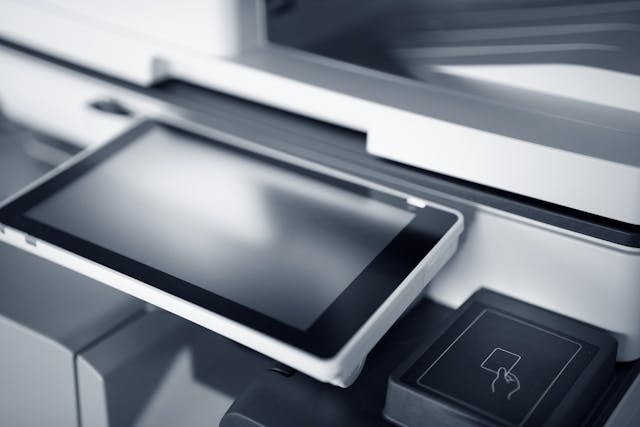
Some printers may have a touchscreen interface where you can enable WSD. Most printers allow you to enable WSD via a web interface.
To connect to the printer, you will need to enable WSD on your printer. To do that, access the printer’s web UI via its IP address and log in.
Next, find the WSD setting, which is usually under the Network or Connectivity settings. For example, you may be able to find it by navigating to Properties > Connectivity > Protocols or to Network > Services. If you can’t find it, refer to your printer’s user manual for instructions, or look for instructions online for your model. The exact steps may vary slightly from one printer to another.
Once you have found the WSD setting, enable it. You may need to enable WSD separately for both printing and scanning. Once it’s enabled, save your changes and reboot your printer by unplugging it and plugging it back in again.
Add the Printer Device in Windows Settings
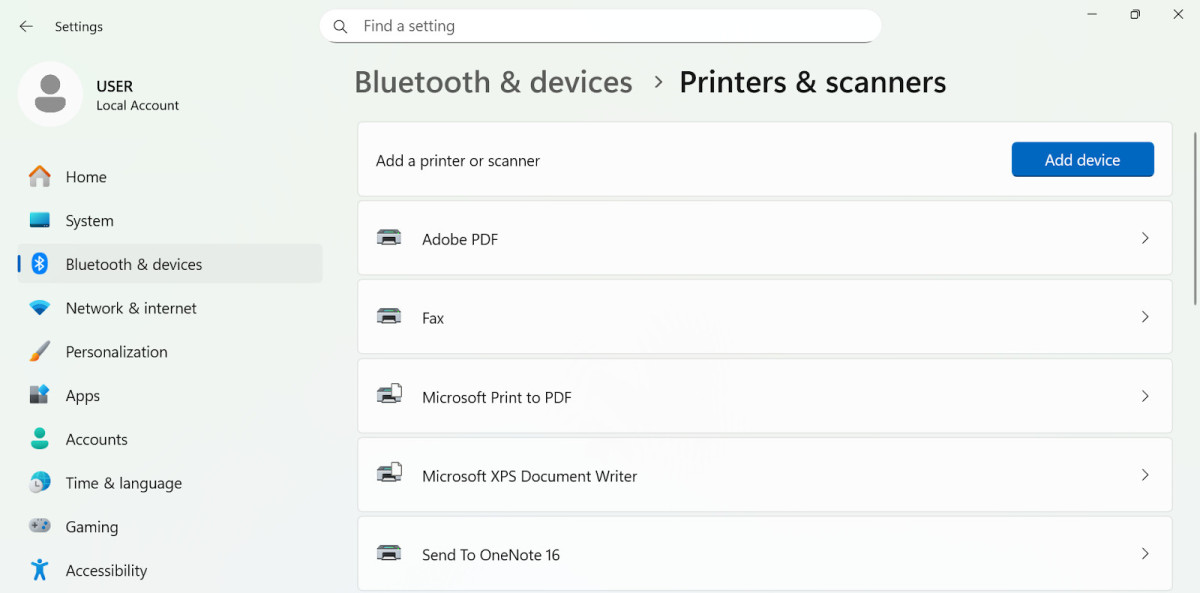
Add the printer from the Bluetooth & Devices > Printers & Scanners settings.
The next step is to add the printer by allowing your Windows device to scan for it. Go to Settings > Bluetooth & Devices > Printers & Scanners and click on Add Device. It will start searching for your WSD printer. Once it finds it, click on Add Device to connect to the printer.
If it can’t find the printer, click on the downwards arrow that appears and then on “Add a new device manually.” There, you can select from several options, such as entering the printer’s IP address, adding a local printer manually by configuring its port, connecting to a printer via Bluetooth (instead of using WSD), and searching for older printers that may not be discoverable immediately.
Verify Print and Scan
To ensure that the printer has been connected properly, run a test print job by printing a PDF. Try printing a PDF and select the printer as the destination device. Similarly, you can run a test scan to ensure that the printer was connected for scanning as well.
Troubleshoot Discovery Issues
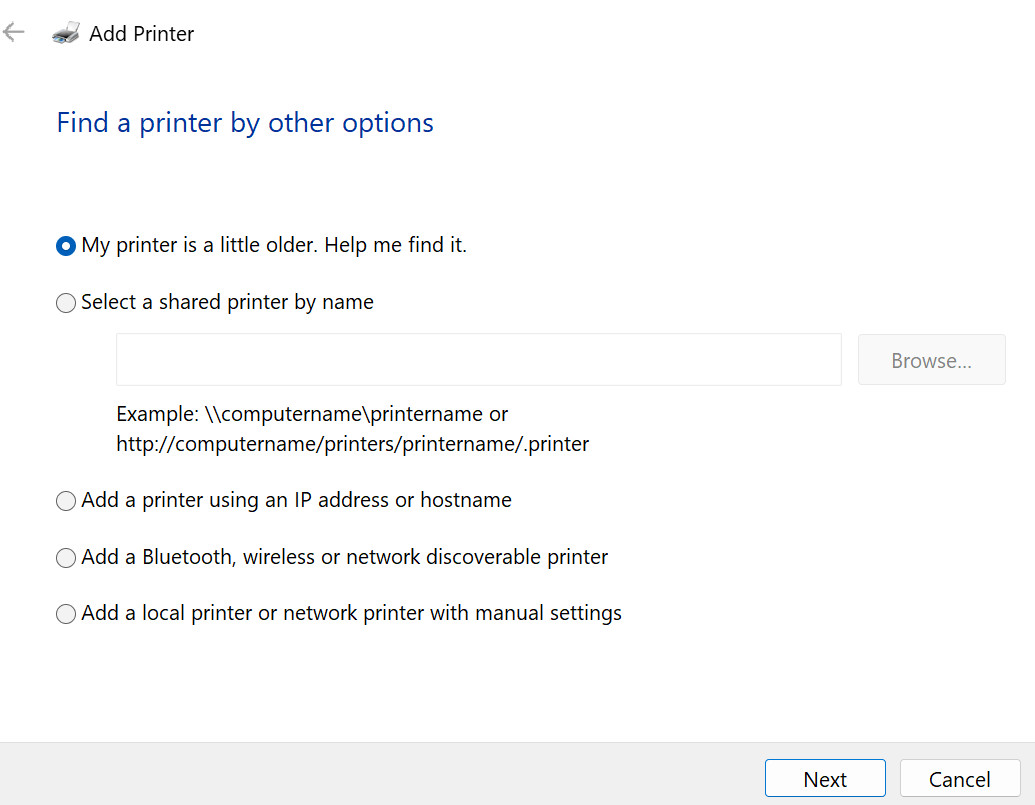
You can add a printer manually if your computer doesn’t discover it automatically.
If you can’t find the printer in your settings, and you have already verified that WSD is enabled on your printer and it’s connected to the same network as your laptop, try adding the printer manually, as explained earlier. For example, if your printer is older, you may need to search for it using the “My printer is a little older. Help me find it” option.
If that doesn’t work, try the following quick fixes:
- Unplug and restart the printer.
- Try connecting the printer to your computer manually via a cable, if possible.
- Make sure the printer is turned on and online.
- Download the latest printer drivers from the manufacturer’s website.
- Ensure all available Windows updates are installed.
- Make sure there are no custom firewall rules preventing your printer from connecting.
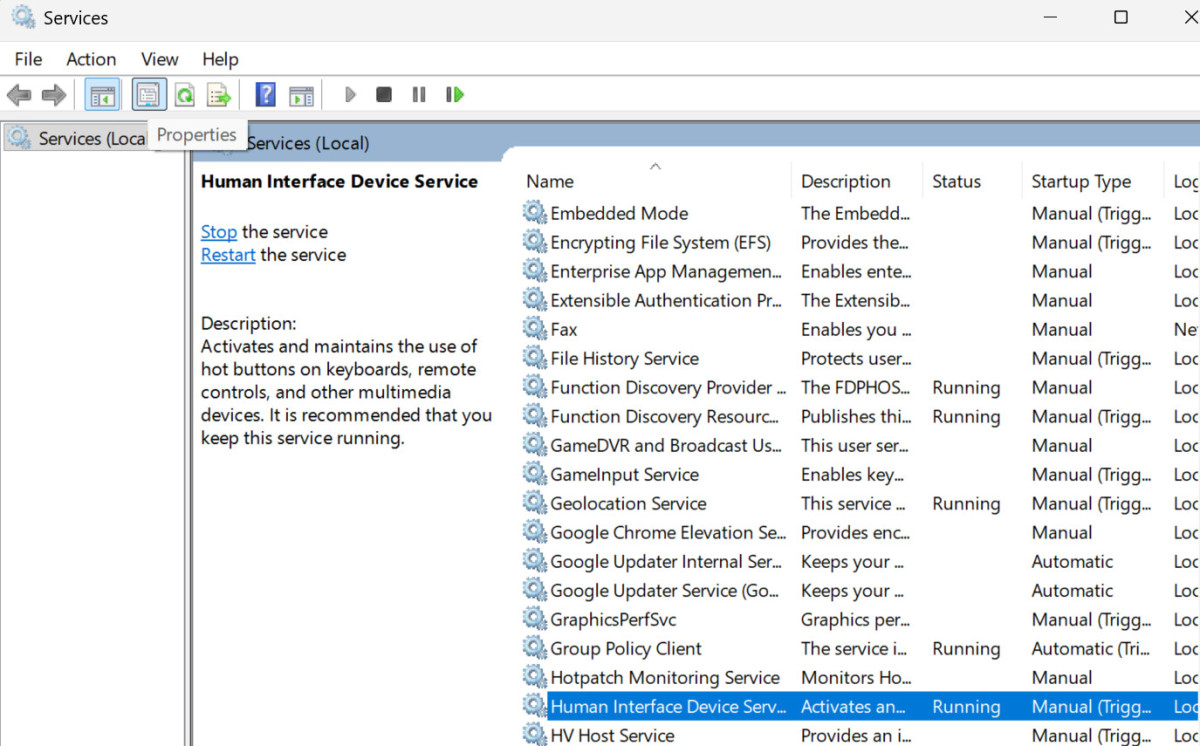
You should also make sure the required Windows services are running. Click on the Windows key and then search for and open Services. In the Services tab, search for the following services and make sure they are all running:
- Function Discovery Provider Host
- Function Discovery Resource Publication
- SSDP Discovery
- UPnP Device Host
- DNS Client
If they are not running, start them manually. You may also want to set them to Automatic instead of Manual to make sure they start automatically. You can set them to Automatic by selecting them and then clicking on the Properties button in the upper-left corner of the Services window.
Another thing you can do is run the Windows printer troubleshooting tool by clicking here and clicking on “Open in Get Help.” This will search for possible problems preventing you from connecting to your printer and fix them.

You can use the manufacturer’s software, such as HP Smart, to detect and connect to the printer.
If all of that doesn’t work, try using the printer manufacturer’s proprietary installer or app to detect the printer. For example, you can use the HP Smart application to connect to HP printers.
Conclusion
Once the WSD setup is complete on your printer, you can typically find the printer easily in your Windows settings. You just need to scan for it. The hardest part is turning on WSD, as that is a bit different on every printer.
However, there are some rare cases in which you will need to tweak your Windows discovery settings a bit, such as by entering the printer’s IP address manually or setting certain Windows Services to automatic.
Related posts:
 What Is The Wsd Port
 How to Connect Canon Printer to iPhone
 The Best Printers for Your MacBook Air
 How To Connect Mac To Epson Printer
How To Connect Epson Printer to Mac
How To Connect Mac To Epson Printer
How To Connect Epson Printer to Mac
 How to Print From Your Android Device to a Network Printer?
 How To Prin On MacBook Air
 How to Connect Your iMac to HP Printer Wirelessly

i find the printer but the wsd scan doesnt work.