
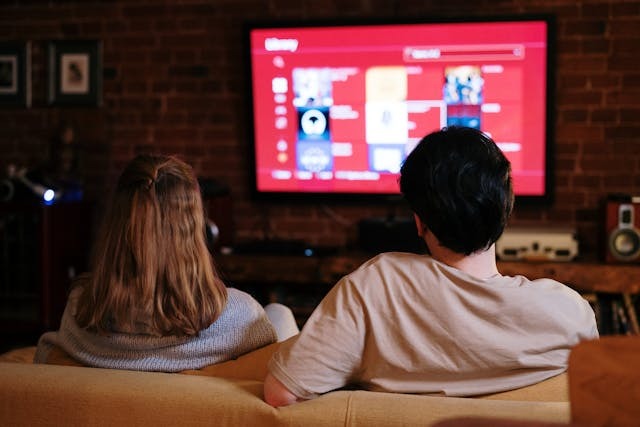
You can cast videos, music, and more from your phone or laptop to your Vizio SmartCast TV using Google Cast or AirPlay 2.
Are you looking for a way to cast to your Vizio TV? In this guide, I will show you how.
First, though, what is Vizio SmartCast?
Vizio SmartCast is an operating system for smart TVs, owned by Vizio. All Vizio smart TVs use the SmartCast operating system.
It’s important to reiterate that Vizio SmartCast itself does not refer to any sort of casting feature, but rather to the operating system itself. A lot of people get confused about that, so I wanted to clear that up before continuing. Instead, if you want to cast to your Vizio TV, you need to use a casting technology such as AirPlay or Google Cast/Chromecast.
With that said, here is how to cast to your Vizio smart TV.
Confirm Setup Basics (Updates & Network)
Before you get started, it’s a good idea to make sure that your Vizio TV is up-to-date. To do that, press the menu button on your Vizio remote. Navigate to Admin and Privacy and select Check for Updates. If there are any updates available, your TV will install them.
Next, make sure your phone, tablet, or computer is ready to cast to your TV. It needs to be connected to the same Wi-Fi network as your TV for it to work properly.
Cast From Android (Chromecast)
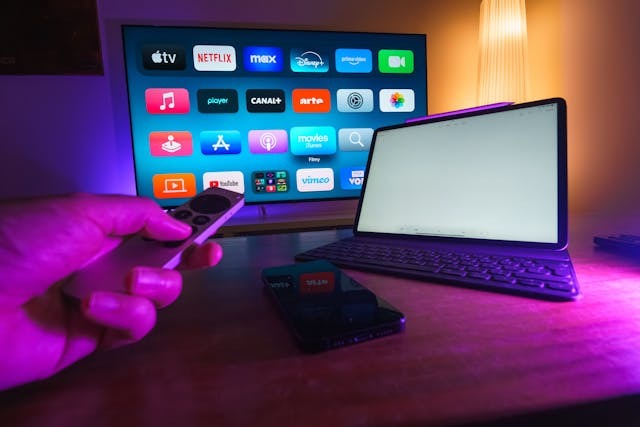
Casting from your Android allows you to watch a variety of shows on your Vizio TV.
Androids support casting to Chromecast devices using Google Cast, and the good news is that your Vizio TV has Chromecast built into it.
Many popular apps, like Hulu, Spotify, and YouTube, support casting to Chromecast.
Open Hulu, YouTube, or any other streaming app that supports Chromecast. Start playing a video, movie, or film, and then click on the Google Cast icon, which looks like this: .
Your phone will start searching for devices. Select your Vizio smart TV from the list, and your phone will start casting to it!
You can also cast to your TV using the Google Home app. Just open the Google Home app and navigate to Home > All Devices. Select your Vizio TV and click on Cast My Audio to cast your audio or Cast My Screen to cast the entire screen.
If you don’t see your Vizio TV in Google Home, you need to add it first. Open the Google Home app and click the + (Add) button and follow the on-screen prompts to find and add your Vizio TV. Remember that your TV must be on the same Wi-Fi network to add or cast to it.
Cast From an Apple Device
You can also cast from your iPhone or iPad to your Vizio TV. The good news is that Vizio SmartCast includes built-in support for AirPlay 2.
When streaming a movie or film on an app on your iPhone, click on the AirPlay icon, which looks like this:
Then, select your Vizio TV to stream to it. Some apps may also support Google Cast, allowing you to cast to your Vizio TV using Google Cast instead. You will see the Google Cast icon if it is supported.
You can also share a photo to your TV screen. In the Photos app, click on the Share icon when viewing a photo. Click on the AirPlay icon and select your Vizio TV to share a photo.
Using AirPlay, you can even mirror your entire iPhone screen. Open the Control Center on your iPhone by swiping down from the top-right corner of your screen (or swiping up from the bottom on older iPhone versions). Then, select the screen mirroring icon, which looks like two rectangles: .
Then, select your Vizio TV. To stop mirroring, click on the screen mirroring icon in the Control Center again and then tap on Stop Mirroring.
You can also cast your Mac screen to your Vizio using AirPlay. Look for the AirPlay icon in the top-right corner of your Mac. Click on it and select your Vizio TV to start casting your screen to it.
Cast From a Windows Device
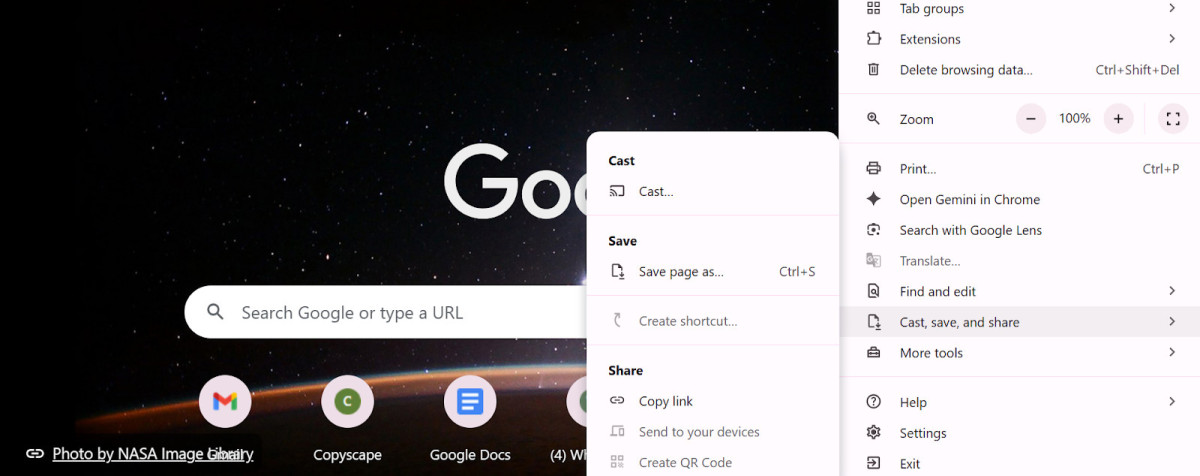
Using Google Chrome, you can also cast to your TV from a Windows device.
You can also cast from a Windows device using Google Chrome. Open the settings in Chrome by clicking on the three dots in the top-right corner. Then, scroll down and hover your mouse over Cast, Save, and Share.
Click on Cast, and your computer will start looking for devices. Select your Vizio TV to cast to it. This way, you can cast a video or movie playing in your browser on your desktop to your TV.
Use Apps as an Alternative
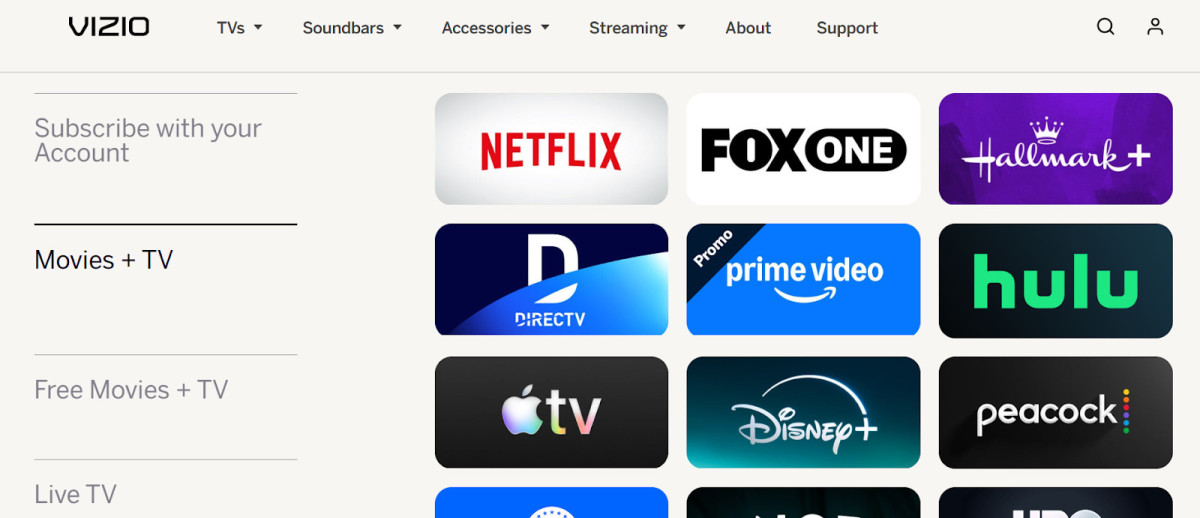
Vizio supports a wide-range of built-in apps, including Disney+, Hulu, DIRECTV, Netflix, and Apple TV.
Of course, casting from your phone isn’t the only way to view content on your Vizio TV. You can play apps directly on your Vizio TV, as it is a smart TV that supports apps. Popular apps like Netflix, Hulu, STARZ, and others are all built into the SmartCast operating system. You can see a longer list of apps here.
To access the apps on your Vizio TV, press the Home button on your remote. Then, press the left arrow to open the menu. Scroll down and select Apps. You can scroll through the apps or click on App Search to type and search for a specific app.
Quick Fixes When Casting Doesn’t Work
If you can’t cast, try the following fixes:
- Make sure both devices are on the same Wi-Fi network.
- Update your Vizio TV and your phone.
- Update the app you are trying to cast from.
- Restart the TV and your phone.
- Restart the router (plug it out and in again).
Conclusion
I hope this guide was helpful! One of the perks of Vizio SmartCast smart TVs is that they support both Google Cast and AirPlay, allowing you to cast from both Android and Apple devices, as well as Windows devices.
Related posts:
 How to Get Choice Band in BDSP?
 Anydesk For Mac Explained
 Troubleshooting Google Sign-in Issues on iPhone
 How to Stay Up to Date with Cash App Notifications?
 Smart TV vs Firestick: What’s the Difference?
 How to Reset Your Ring Door Bell?
 How to Mirror Your Macbook to Your Sony TV?
 How to Download Apps On Hisense Smart TV?
