

You can share events from your iPhone or iPad to friends via email or text message.
Do you want to share your calendar event with a friend or family member via text message? Fortunately, iOS makes that super easy. Today, I will show you how to share your iPhone calendar events via text and add invitees to a calendar event on IOS. Let’s get into it!
Prepare the Event Before Sharing
Before you create the event, make sure it’s ready to share. It should have a title that is easy to understand, a start/end time, a location (if applicable), and more. You can add notes, repeating rules (if the event will be recurring), and other important data that others will need to know about.
Use “Invitees” for Native Calendar Invites

Use the native Invitees feature for seamless event sharing.
The easiest and most efficient way to share a calendar event with others is to use the Invitees feature, which is built into the Calendar app.
Open the Calendar app, click the Event, then tap Edit. Tap on Invitees.
In India or China, you can enter a phone number to send an invitation via text message. In all other countries, you can only send it via email, either by entering their email address or by selecting a contact which you have saved together with that person’s email address.
To send it to a contact, start typing a contact’s name or click on the plus (+) icon to browse contacts. Select a contact, and click on the red checkmark icon to send them an invitation.
If you do not have their email address, and you are not located in India or China, continue reading for other ways to send an invitation via text message alone.
Share Public Calendar Link
The second option is sharing your entire calendar via a shareable link. This will generate a read-only version of the calendar, where people will be able to see upcoming events.
To do that, go to the Calendar app, click on the calendar icon at the bottom, and then click on the info icon next to the calendar you want to share.
Next, toggle on the Public Calendar option and click on Share Link. You can then share the calendar link via SMS. The person receiving the link can even subscribe to the calendar and be notified of events using a compatible app, like Calendar for macOS.
Share an .ics File
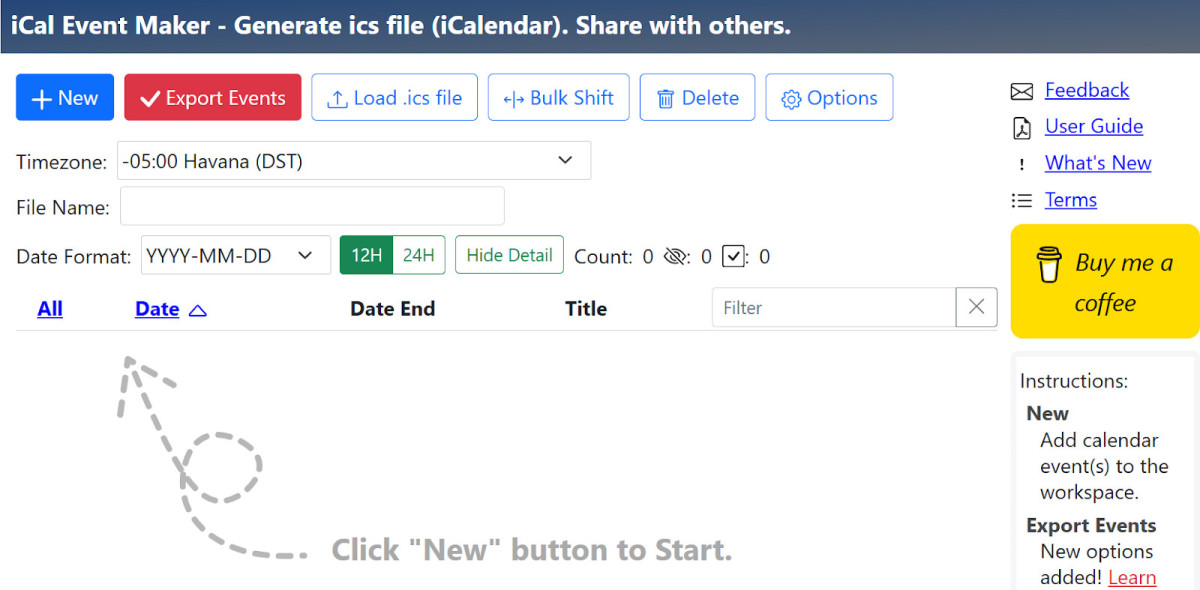
Another option is creating an .ics file via a third-party tool. This file will contain all the details of your event. You can send this file via text message, and the receiver will be able to use it to add the event automatically to their calendar, such as Google Calendar or Outlook.
I recommend iCal Event Maker. It allows you to not only generate an .ics file that you can share with others, but you can also create a webpage where users can view your event. You can even generate a QR code that people can scan to add the events to their own calendar.
However, you will need to re-enter all the details of the event again. It doesn’t share it directly from your Apple Calendar.
Handling Changes and Follow-ups After Sharing
The best way to share calendar events is through the built-in Invitees feature. That way, users can respond to your event, accepting or declining the invitation or marking themselves as “maybe” attending.
You can then keep track of who will be attending your event. Recipients can even propose an alternative time if the time you suggested does not work for them.
You can also edit or delete events from the Calendar app, and invitees who accepted the event will be notified of important changes, such as time changes. Open the Calendar event, click on the event, and tap on Edit to make changes. You can also simply drag the event to a different time.
Conclusion
I hope this guide was useful! Sharing events from your iPhone calendar is rather easy. There are a few ways to do so, but the recommended method is to use the Invitees feature, which allows users to directly respond to invitations and helps you keep track of who is coming.
Related posts:
 How to Make and Join Groups in Roblox?
 How to Set Video as Wallpaper on iPhone
 Troubleshooting Ghost Touch Issue on Your iPhone X
 How To Sync Email On Android
 How To Share An Album On Iphone
 How to Export iMovie Project from iPhone to Mac
 How To Share Contact Card On iPhone
 How to Troubleshoot ‘Purchase Could Not Be Completed’ on Apple Devices?
