
Do you need to turn off your iPhone, but your screen is not working? Perhaps your screen is unresponsive or cracked, and you want to turn off your iPhone to avoid losing battery. Unfortunately, doing this is not as intuitive as you may think, as turning off an iPhone typically involves using the on-screen power slider on your device.
However, there are ways to turn off your iPhone without using the screen at all, using only the built-in hardware buttons. In this guide, I will show you which button combo to use to turn off your iPhone without ever using the screen.
If You Just Need to Reboot: Use a Force-Restart (No Screen Required)
First, though, let’s talk about how to perform a hard reboot.
A force restart often fixes issues such as freezing, glitching, or an unresponsive phone. Even if you need to shut off your phone entirely, read this section, because it will be important when you want to just shut off your phone.
Here is how to perform a force restart:
- Press and release (don’t hold) the volume up button.
- Then, press and release the volume down button.
- Next, press and hold (don’t release) the side button.
- Keep holding until the Apple logo appears, at which point you can release the side button.
On older models, this is a little different:
- On an iPhone 7 or iPhone 7 Plus, press and hold (don’t release) both the volume down button and the Sleep/Wake button at the same time. Release both buttons only once the Apple logo appears.
- On an iPhone 6 and 6 Plus, iPhone 6s and 6s Plus, iPhone SE, or iPhone 5s, press and hold both the Home button and the Sleep/Wake button at the same time. Release both buttons once the Apple logo appears.
To Power Off (Not Restart) When the Display Won’t Respond
To power off without the screen, you can proceed as if you wanted to perform a force restart, using the volume + side buttons. The trick, though, is not to wait until the Apple logo appears.
Instead, hold the side button until the iPhone shuts down, and release it quickly before the Apple logo appears. You need to be quick about it, because once the Apple logo appears, your phone will restart.
You can try doing this a few times until you get it right. You need to wait until the iPhone shuts down and then quickly release the side button before the Apple logo appears, which is a bit tricky.
On older iPhones, release the Sleep/Wake button + the volume down button or the Sleep/Wake button + the Home button after the iPhone shuts down but before the Apple logo appears.
Try Siri (iOS 15+)
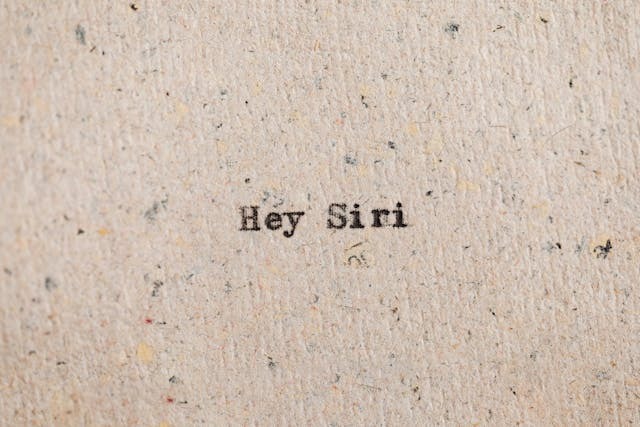
On newer iOS versions (iOS 15 and later), you can use Siri to turn off your iPhone. To do that, just say, “Hey Siri” (or “Siri,” depending on your settings) to activate Siri. Then, say, “Turn off my iPhone.” Siri will aks you to confirm first. It will say something along of the lines of, “Just to confirm, do you want me to turn off the device?”
When it does that, answer with a “Yes.” Siri will then turn off your iPhone. You don’t need to press any buttons or use the screen for this.
Of course, this only works if Siri is turned on. If Siri is turned off, you would need to turn it on in your settings, which you woulnd’t be able to do with a cracked and unresponsive screen.
Last Resorts if Nothing Responds
If none of those options worked, you can still use iPhone Mirroring with your Mac to shut down your iPhone.
To do that, you will need a Mac with the Apple T2 Security Chip or Apple Silicone and which is running macOS 15 or later. Your iPhone must have iOS 18 or later and must be locked with a passcode.
Both the iPhone and Mac must be signed into the same Apple account, which must have two-factor authentication turned on. Both devices must also have Bluetooth and Wi-Fi turned on, and the iPhone must be locked and be near your Mac. Make sure your Mac is not sharing its internet connection or using AirPlay/Sidecar.
Finally, you cannot be located in an EU country, as iPhone mirroring is not supported in the EU.
If you meet all these requirements, you can use iPhone mirroring on your Mac.
Here’s how to do it:
- Open the iPhone Mirroring application on your Mac. It is installed automatically if you have macOS 15 or later. You can find it in Spotlight or the Applications folder.
- You may need to unlock your iPhone by entering your iPhone passcode on the iPhone’s screen. If your Mac asks you to do this, you won’t be able to proceed if you can’t use the phone screen at all. If you can at least click on the digits to unlock your phone, you can proceed, even if you can’t use the slider.
- Go to Settings > General > Shut Down to turn off the iPhone. Use the slider on the mirrored iPhone on your Mac to turn it off.
If even that method fails, the only way to turn off your iPhone at that point is to let the battery drain. This may take a few hours or a few days, depending on how much power your iPhone has left. This means, of course, that once you fix the screen, you will have to charge your phone again to use it, but this method may be useful in some situations.
After Shutdown/Restart: Basic Checks
If you want to turn on the iPhone again, press and hold the side button (or the top button in older models) until the iPhone turns on and the Apple logo appears. You may need to charge your phone if it doesn’t have battery. If the phone’s screen is still broken or unresponsive, you should take it to a repair shop for help.
Conclusion
I hope these troubleshooting steps were helpful! It’s definitely possible to safely shut down and turn off an iPhone with no touch input on the screen. There are a few ways to do it, so hopefully, at least one of them worked for you!