

Are your tabs on Safari constantly reloading on your iPad every time you try to open Safari or open the tabs? iPadOS closes tabs automatically to help free up RAM to ensure the smooth operation of your device.
However, this can be quite annoying. Read on to learn what you can do to stop this from happening.
Reduce Open Tabs and Apps
The reason your iPad keeps closing your tabs is to reduce how much RAM space is being used up. If you have other apps open, or if you have other tabs open on Safari, they will take up RAM and may cause your tabs to be closed automatically to conserve RAM.
RAM stands for Random Access Memory, and it’s the short-term memory that your iPad uses to temporarily store apps and processes that are currently in use. If there isn’t enough RAM, resources will be offloaded to make more RAM available.
Schedule Tabs to Close Automatically

If you have a habit of leaving too many tabs open, you can schedule them to be fully closed automatically. This helps free up RAM for new tabs that you open.
To do that, go to Settings > Safari > Close Tabs and select the option for tabs to be closed automatically. You have three intervals to choose from:
- After 1 Day
- After 1 Week
- After 1 Month
For example, if you choose After 1 Week, tabs will be closed after one week of inactivity. If you use that tab before the week is over, it won’t be closed.
Enable Background App Refresh for Safari
While you can’t always force Safari to keep tabs open, you can increase the chances of that happening by enabling background app refresh.
Go to Settings > General > Background App Refresh and enable it for Safari while disabling it for other apps. This helps iPadOS prioritize Safari tabs instead of other apps. Note that this could lead to additional data usage and battery drain.
Turn Off Low Power Mode
Low Power Mode can sometimes force apps or tabs to close automatically to conserve energy. Go to Settings > Battery and turn off Low Power Mode. Remember, this can cause your battery to drain faster.
Turn Off iCloud Sync
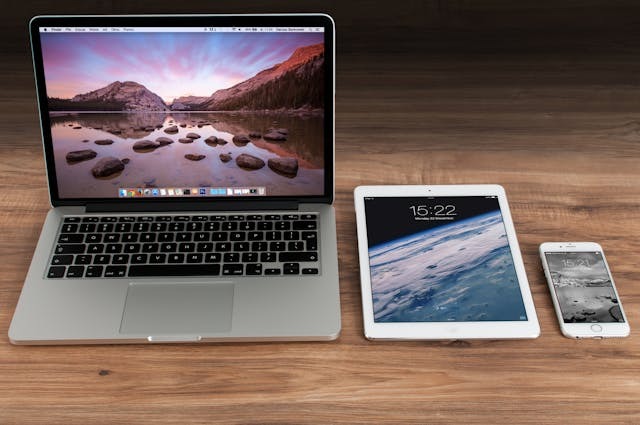
Syncing Safari with your Mac, for example, can sometimes lead to bugs, causing your tabs to disappear.
iCloud Sync can sometimes cause tabs to disappear, especially in tab groups. This is a bug that some users have reported experiencing.
Temporarily turn off iCloud Sync for Safari by going to Settings > [Your Name] > iCloud and toggling off iCloud Sync for Safari under Apps Using iCloud.
Conclusion
I hope this guide was useful! While there’s no surefire way to force tabs on Safari to remain open, you can certainly reduce the chances of it happening. However, if it happens often, you may want to consider upgrading to a newer iPad model or one with more RAM.
Check the RAM space for your model and then compare it to other models. Each model has a set amount of RAM that can’t be changed.
Related posts:
 How to Quickly and Easily Check DPI of an Image
 How To Choose An External Microphone For Iphone?
 How to Make Siri Stop Reading Your Texts
 How to Get Your Screen Protector Sparkling Clean
 Overcoming ISP Blocks: How to Access IPTV Services
 Unlock the Fun of Roblox on Mac
 How to Close Apps on Your iPad Pro
 Why I Can’t Save My Word Document On Mac?
