
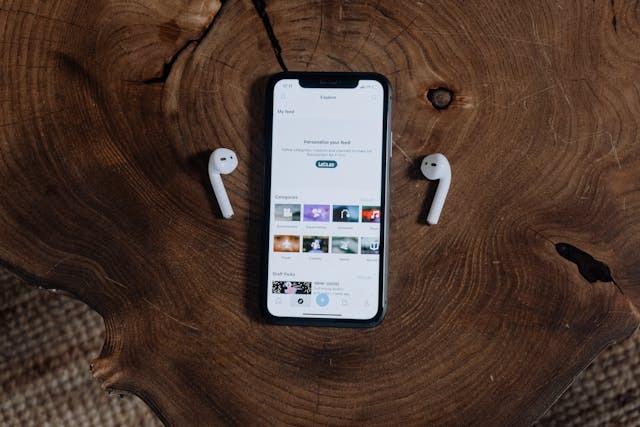
With the power of Live Translation, your AirPods can translate audio from foreign languages into your own language in real time.
Did you know that your AirPods can translate audio in real-time? Imagine you’re in a meeting with a client or friend who only speaks Spanish, and you only speak English. With the power of Apple Intelligence and Live Translation, you can each speak in your respective language, and your phone will automatically translate your words for each other.
This feature unlocks cross-border and cross-language communication, and it’s been available since the release of iOS 26 in September 2025. Read on to learn how to use it.
Supported Devices, Models, and Languages

The first thing to understand is that the Live Translation feature isn’t actually built into your AirPods but into your iPhone. Your iPhone must meet the requirements for it to work. That also means that if you use your AirPods with another device, such as an Android, it won’t be available.
To use Live Translation, you need iOS 26 and an iPhone Pro 15 or a later version.
Live Translation can be used in a variety of ways. For example, you can use it during FaceTime or voice calls. More on that later, though.
Live Translation With AirPods takes that to the next level and allows you to translate audio from your surroundings. For example, if you’re traveling to another country, your AirPods can listen to what’s being said around you and translate them for you in real time, both via captions on your screen and via a translated audio playing in your AirPods.
For this use case (Live Translation With AirPods for surrounding audio), you will need an AirPods 4 (ANC), AirPods Pro 2, or AirPods Pro 3.
Live Translation requires Apple Intelligence, which is not available in the EU. This means that if you are an EU resident whose Apple device region is set to the EU and you are located in the EU, you won’t be able to use Apple Intelligence or Live Translation.
Finally, Live Translation is not yet available for all languages. In particular, Live Translation With AirPods as well as Live Translation in FaceTime or during phone calls is only available for the following languages:
- English
- French
- German
- Portuguese
- Spanish
However, you can also use Live Translation in Messages. Live Translation in Messages translates text messages sent in Messages in real time and is available in the following languages, in addition to the ones above:
- Italian
- Chinese Simplified (not available in mainland China)
- Italian
- Japanese
- Korean
Set Up AirPods and Enable Live Translation on iPhone
You must have the latest version of iOS, a supported iPhone, and supported AirPods to use Live Translation With AirPods.
The first step is to make sure Apple Intelligence is enabled and turned on. You will need to have an iPhone 15 Pro or later and have the latest iOS version.
Then, go to Settings > Apple Intelligence & Siri and turn on Apple Intelligence.
Next, make sure your AirPods are paired with your iPhone and have the latest firmware. To upgrade the firmware, just put the AirPods in their case, close the lid, connect the case to a power source, and leave it within Bluetooth range of your iPhone for 30 minutes while your phone is connected to Wi-Fi.
The next step is to download the languages you want to use. You will need to download both languages. For example, if you’re translating from German to English, you need to download both German and English.
To download languages for Live Translation With AirPods, first wear your AirPods and make sure they are paired and connected to your iPhone. Next, go to Settings on your iPhone and tap on your AirPods. Click on Languages (under Translation) and tap on the languages you want to download.
Use AirPods for In-Person Conversation Translation
Once that’s done, you can start using your AirPods to translate in-person conversation. With your AirPods in your ear and connected to your iPhone, open the Translate app on your iPhone.
Click on Live (near the bottom of the screen). Then, choose the two languages: the language the other person is speaking and the language you want their voice to be translated into.
Then, just click on Start Translating in the Translate app to start Live Translation. You can also press and hold the stem of both AirPods at the same time to start Live Translation, or you can command Siri to start Live Translation.
Your AirPods will listen to what the person is saying and relay it to you in your own language via audio playback.
It works the other way around too! Just say anything in your language, and you can play it back to the other speaker in their language using your iPhone speaker.
One really cool feature is that if the other person also has both an iPhone and AirPods that meet all the requirements outlined above, you can both use Live Translation in a seamless manner. Both people can speak in their respective language, and each person’s AirPods will translate it to the other language.
For example, you can speak to your friend in English and their AirPods will translate it to Spanish. Meanwhile, they can speak in Spanish, and your AirPods will translate it to English.
Use Translation in Messages and FaceTime
Live Translation is also available during FaceTime meetings and phone calls.
Did you know that you can also use Live Translation when on phone calls, when using FaceTime, and in the Messages app?
During a call in either the Phone app or the FaceTime app, just tap the More button and then click on Live Translation. Select your languages and then tap on Start Translation. You will hear audio translations during the call. This doesn’t require AirPods, but you can use it with AirPods as well.
Live Translation in Messages can translate text messages sent in other languages automatically. Tap on a message conversation. Tap on the person’s name at the top, scroll down, and click on Automatically Translate. Select your desired languages. You will then receive automatic translations for future messages.
How Does This Compare to Apple’s Translate App Without Live Translation?
Apple’s Translate app does offer translation even if Live Translation is not supported by your phone, and you can even record audio, and the app will translate it for you.
However, the difference is the seamless experience. With Live Translation, you don’t have to constantly press the record button and record new audio, passing the phone back and forth for each statement. Instead, just activate Live mode and speak normally, and Live Translation will translate everything in real time into the target language.
Limitations, Privacy, and Reliability
Is the GDPR the reason Apple Intelligence is not available in the EU? While nothing has been said publicly about the matter, it’s a plausible explanation.
According to Apple, it anonymizes any data it collects when you use the Translate app. Apple also claims that Apple Intelligence is designed to protect your personal data.
However, it’s worth noting that Apple Intelligence is not available in the EU. Apple doesn’t give a reason for this, but it’s safe to assume that it’s either because of privacy regulations, antitrust regulations, or EU regulations on AI, or all three.
The EU has the strictest data privacy regulations in the world with its GDPR, and it also has strict regulations on the use of AI. Apple may not meet the legal requirements of those regulations with Apple Intelligence, so that is something worth considering.
Also, you should never rely on Live Translation or any translator app for translations in life-and-death scenarios.
Alternatives for When Live Translation Isn’t Available
If your phone doesn’t support Live Translation, there are alternatives available. My favorite is Google Translate, which offers a Live Translate feature that allows you to translate bilingual conversations automatically, live.
Open the Google Translate app on your iPhone. Select your languages and then click on Live Translate. The microphone will detect when each language is spoken and display the translated version on the screen. You can also tap on the translated text on the screen to play it out loud.
Conclusion
I hope this guide was useful! Live Translation is an amazing feature that has the potential to revolutionize how we speak to each other. Just a short time ago, human translators and dictionaries were necessary. Now, on the other hand, we can just pop in our AirPods and talk to each other in different languages.
Related posts:
 How To Mute Microphone On Mac?
 IPhone Emergency Alert – All You Need To Know
 How to Transfer Videos from Your iPhone to Your Computer
 How To Automatically Replay Videos On iPhone
 How To Download Video From Youtube On Mac
 How Long Do Airpods Last
 Airpods Pro Microphone – 19 Ansers & Troubleshooting Tips
 Why Facetime and iMessage Notification Keeps Popping Up?
