
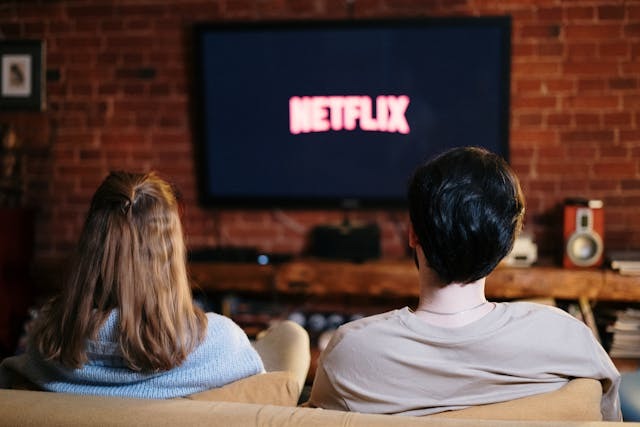
While a Samsung Smart TV has apps like Netflix built in, you can also play media from a USB flash drive.
Although a Samsung Smart TV has built-in apps, there may be times when you want to use its USB ports. For example, you may want to play media, such as videos, that are stored on a USB flash drive, or watch videos you took with your digital camera. Here is how to use USB ports on your Samsung Smart TV and how USB playback works.
How to Play Media From a USB Device
To play media from a USB device, you will first have to stick the device into a USB port on the back of your TV, or into a port on the Mini One Connect of your TV. Note that older Samsung TVs may not have USB ports.
Next, press the Source button on your remote and select USB Device USB as the source for media. Alternatively, press the Home button on the remote, select Source, and then choose USB Device or Connected Device.
Once you have selected the USB as the source, you should be able to navigate the folders and files on the USB device. Select the content you want to play and press Enter on the remote to bring up the control panel, allowing you to start playback. You can always press the return button on your remote to browse additional files on the USB.
imitations and Supported File Systems
When playing media from a USB file, there are certain limitations you must know about.
- Type of USB devices: Only Mass Storage Class USB devices, like flash drives and digital cameras, are supported by the USB ports. This excludes, for example, USB hubs.
- Connection: You must insert the USB device directly into the USB port and not use a USB extension cord. Also, if the device requires a power connection while in use, connect it to the USB [5V, 1A] port. This provides a small amount of power (5 volts) to charge the device. If the device requires a higher power supply, it may not work at all.
- File systems: QLED and SUHD Samsung TVs support FAT, exFAT, and NTFS file systems, while Full HD TVs support NTFS (Read Only), FAT16, and FAT32.
- Number of files: QLED and SUHD TVs can only display 1,000 files per folder when sorted in view mode and up to 8,000 files and folders in total. Meanwhile, Full HD TVs can only display up to 4,000 files and folders.
- Content restrictions: Pirated content protected by DRM (Digital Rights Management) may not play. Some files, like high-bitrate files, may not play.
You also need to make sure you are trying to play a supported file format. Supported audio file formats and codecs on the QLED and SUHD TVs include the following file formats (codecs are in parentheses):
- MP3 (MPEG1 Audio Layer 3)
- M4A (AAC & ALAC)
- MPA (AAC)
- AAC (AAC)
- FLAC (FLAC)
- OGG (Vorbis)
- WMA (WMA)
- WAV (wav)
- MID (midi)
- MIDI (midi)
- APE (ape)
- AIF (AIFF)
- AIFF (AIFF)
Supported video file formats on QLED and SUHD TVs are displayed in the following chart:
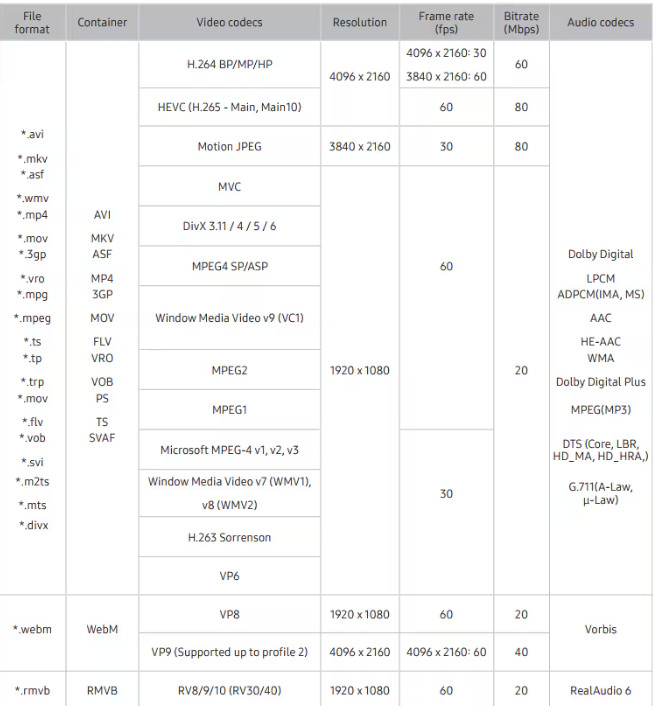
For other TVs, check the user manual for supported audio and video file formats.
Organize Files for Reliable Playback
Before inserting the USB drive into your Samsung TV, you may want to organize it and optimize the folder structure. You can do that by plugging it into your PC and organizing its media library there. That way, when you plug it into your TV, you will be able to navigate your folders and find the file you are looking for. Use file name best practices, such as avoiding file names that are too long and using underscores between words, so you can easily understand what each file is about.
Powering Accessories From the TV’s USB Ports
Earlier in this article, I mentioned that if you need to power a device while it’s plugged into a USB port, make sure to use the port that is marked as [5V, 1A], which offers additional power over the USB [5V, 0.5A] port. This offers 1 Amp of power and is best for hard drives, which require additional USB power draw.
However, even this is not a significant amount of power, which is why devices requiring a higher amount of power may not work.
You can charge a phone or another device using this port as well. However, while the power supply may remain stable, it won’t charge very quickly, as the power supply is pretty low compared to a wall outlet. Devices may take very long to charge. These ports are not designed to charge devices but rather to supply temporary power while they are in use.
Fixes When Files Won’t Play
If a file won’t play, refer to the section earlier in this article about limitations and make sure you meet all requirements.
For example, if your USB device is not formatted with a supported file format, it won’t play. Instead, you will need to plug it into your PC and use software to format the device with a supported file format. Note that this may wipe the device clean, so it’s important to back up your files first.
Similarly, if the files are high-bitrate files or pirated content with DRM installed, or if you are trying to play unsupported file formats, playback won’t work. Also, if they are not connected directly to the USB port, it won’t be recognized. Finally, if you are connecting multiple USB devices to the same TV at the same time, it may only recognize some of the devices.
Update TV Firmware via USB
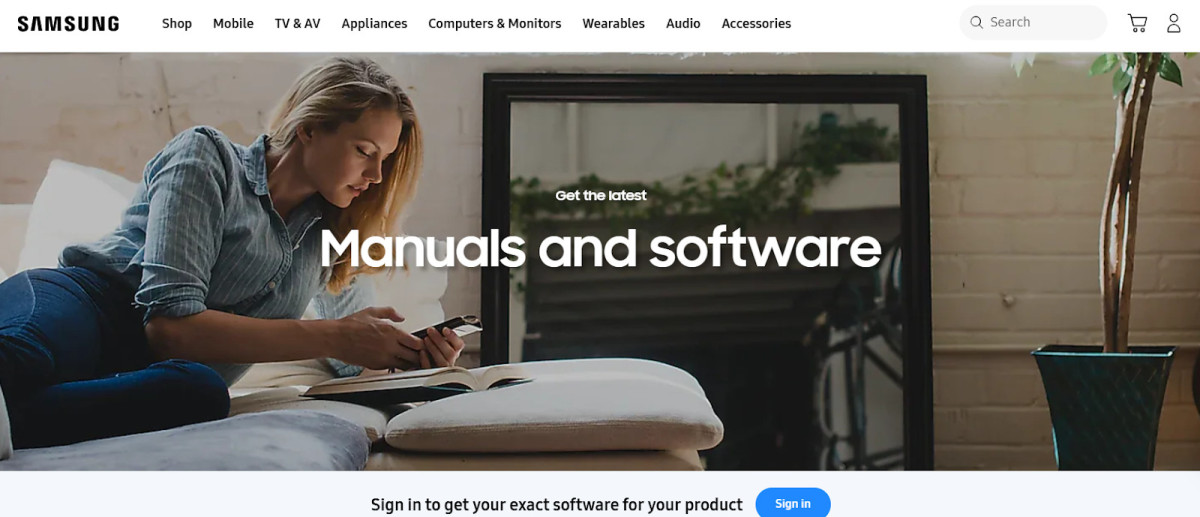
Download the latest firmware from the Samsung Download Center and load it onto your USB drive.
Did you know that you can update your Samsung TV’s firmware with a USB flash drive? Here’s how to use perform a USB firmware update on your Samsung:
- Make sure the USB drive is empty and FAT32 formatted.
- Plug the drive into your computer and head to the Samsung Download Center on your browser.
- Enter your product type and search for your specific model, or search by model code or product name.
- Visit the support page for the product and download the latest upgrade file.
- Locate the file on your computer and unzip it.
- Copy all the unzipped files onto your USB flash drive. Make sure they are not located within a folder on the USB drive but that each file is moved directly to the flash drive.
- Remove the USB flash drive from your computer and insert it into a USB port on your TV.
- Using your TV’s remote, navigate to Settings > All Settings > Support > Software Update > Update Now. Follow any on-screen prompts to complete the upgrade.
Conclusion
I hope these USB playback tips and steps were useful. Fortunately, it’s pretty easy to play media from a USB file on your Samsung TV. You just need to make sure you have a supported file format, such as exFAT, and meet other requirements. You can also charge a USB device, using your TV as an external power source, but it might take long to fully charge the device.
Related posts:
 Game On: How to Stream Super Bowl 2022 on Samsung TV Plus
 How To Turn Off Firmware Password Mac?
What Force 4x Msaa Do
How To Play Bingo Cash App
How To Turn Off Firmware Password Mac?
What Force 4x Msaa Do
How To Play Bingo Cash App
 My PCH Account
 Best Smart Home Devices for Beginners in 2025
 How to Troubleshoot Android’s Persistent Do Not Disturb Issue?
 Samsung Password Manager – Features and Benefits
