
Are you looking for a way to enable TPM on your Mac for an application that requires TPM? It’s not so simple! TPM is not available on Mac, although you may be able to implement it with a virtual Windows machine on your Mac. In this guide, I will explain what TPM is, why it’s not available on Mac, and what you can do instead.
Understand TPM vs. Apple’s Security Architecture

TPM stands for Trusted Platform Module, and it’s a crypto processor that provides support for core features such as secure boot, user authentication via Windows Hello, and BitLocker on Windows.
TPM 2.0 is a requirement for Windows 11 and many applications.
However, TPM is not available on Macs, even when using Bootcamp. Apple has its own hardware and security architecture and does not use TPM.
Instead, modern Macs use Secure Enclave, a dedicated secure subsystem that provides secure boot ROM, an AES engine for cryptographic purposes, and more. In other words, in ensures secure boot, user authentication, and other security features, just like TPM does.
Turn on Core macOS Protections
Secure Enclave is enabled by default. It secures the booting process, user authentication, and other features. However, there are additional macOS security features that you can enable in your settings.
If your Mac has an Apple Silicon chip or a T2 Security Chip, Secure Enclave already encrypts your hard drive. However, you can turn on FileVault to ensure that nobody can access your data without entering your login password.
On the other hand, if you have an older Mac, you must enable FileVault to encrypt your hard drive. Otherwise, someone can access your files if they take out your hard drive.
To enable FileVault, go to Apple menu > System Settings > Privacy & Security > FileVault and turn it on. I recommend choosing the option of using your iCloud account to reset your login password if you forget it (the other option is using a recovery key, which is easy to lose).
Gatekeeper
Gatekeeper is a Mac security feature that ensures all apps on your Mac are checked before they are installed to ensure they are safe and from a trusted source. It is enabled by default.
However, if you disabled the setting, you can re-enable it for an added layer of protection.
To do that, go to System Settings > Privacy & Security. Under “Allow apps downloaded from,” choose “App Store and identified developers.”
You may need to click on the lock in the bottom-left corner and enter your password before making changes to these settings.
Firewall
I also recommend turning on the firewall on your Mac. Go to Apple menu > System Settings > Network > Firewall. Make sure it is enabled.
You can also choose how to block incoming connections, such as blocking all incoming connections to nonessential services or apps and blacklisting or whitelisting certain apps from receiving inbound connections.
Set Secure Boot & External Boot Policy

Full Security is enabled by default and ensures your operating system is not compromised.
By default, Macs are set to Full Security for the boot policy. What this means is that your Mac will check updated integrity information to ensure your operating system is secure and safe before booting it up. If the OS is unknown or unverified, it requires an internet connection to download updated integrity information, and if FileVault is enabled, it also requires a password to unlock the computer.
If the policy is set to Medium Security, it only checks if the operating system was properly signed by Apple (or Windows if you are using Bootcamp on a Mac). This doesn’t require an internet connection and means older operating systems that are no longer supported will still be allowed. On Macs with Apple Silicon chips, this is called Reduced Security instead of Medium Security.
No Security means that no security policies are enforced when booting up your Mac. This is available on Macs with the Apple T2 Security Chip.
Also, by default, your Mac does not allow booting from removable or external disks, like DVDs or USB sticks. You can change whether external disks are allowed in the Startup Security Utility. This option is available on Macs with the Apple T2 Security Chip.
How to change these settings varies depending on which Mac you have.
On a Mac with the Apple T2 Security Chip, follow these steps:
- Turn on your Mac and press and hold Command + R when the Apple logo appears to enter macOS Recovery mode.
- Select the user (must be an admin), click on Next, and enter the password.
- From the Utilities menu, select Startup Security Utility.
- Click on Enter macOS Password and enter the password for the user you select (must be an admin).
If your Mac has an Apple Silicon chip, follow these steps:
- Select Apple menu > Shut Down.
- Press and hold the power button until you see “Loading startup options.”
- Click Options > Continue.
- Select your startup disk and click on Next.
- Select an admin account and click on Next. Enter the password and click on Continue.
- Select Utilities > Startup Security Utility and select your operating system.
- Here, you may need to click on Unlock and enter your admin password.
- Click on Security Policy and choose between Full Security and Reduced Security.
I recommend Full Security. I only recommend switching it to Medium Security/Reduced Security temporarily if it is asking for a Wi-Fi connection, but you don’t have Wi-Fi access.
Need TPM for Windows? Use a VM
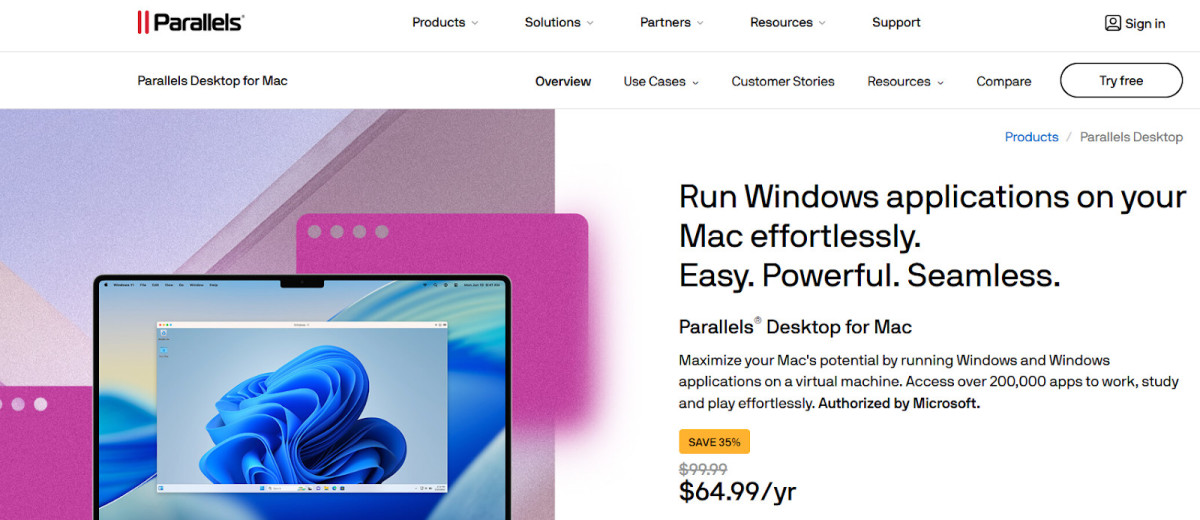
Use Parallels to run a virtual Windows machine, complete with TPM, on your Mac.
There is no way to enable TPM on a Mac. However, if you are using Parallels for a Windows Virtual Machine on a Mac, you can enable TPM. Shut down the Windows VM and go to the VM’s configuration settings. Navigate to Hardware, click on the plus icon, select TPM Chip, and click on Add. This will add a virtual TPM to your VM and allow you to use applications that require it.
Note that in the latest versions of Parallels, the TPM will automatically be included, as it’s a requirement for running Windows 11.
On the other hand, Bootcamp does not support Windows 11; it only supports Windows 10. If you want to run Windows 11, I recommend using Parallels.
Conclusion
I hope this guide was helpful! The short answer is that TPM is not available on a Mac, as Macs have their own security system. If you are running a virtual Windows machine on a Mac using Parallels, and it doesn’t have TPM, you can add it manually; newer versions automatically include it. However, you can’t add it if you are using Bootcamp.
Related posts:
 Introduction to 5G Network Slicing for Enterprise Use Cases
 How to Fix When Valheim is Not Launching?
 Installing iOS on Android: Is It Possible?
 How to Dual Boot Ubuntu and macOS on Mac
 Does the iPhone 13 Pro Max Have a Charging Port?
 Essential Softwares You Need to Connect Your iPhone
 How to Troubleshoot AirPlay Issues on Roku Devices?
 Getting Started with Jupyter Notebook: A Guide for Installing on Mac
