
Do you want to send text messages online with Verizon? Unfortunately, email-to-SMS and other legacy methods, such as the Verizon Messages web and desktop apps, are no longer supported. However, there are still ways to send text messages from your desktop if you have a Verizon Wireless account. Let’s get into it!
What Happened to Email-to-SMS and Verizon Messages?
Email-to-SMS used to be supported by many carriers. It allowed you to send text messages to a mobile number using your email. For example, you could send an email to a specific @vtext.com email address, and the message would be delivered to the mobile number specified in the email address.
However, Verizon, as well as other major carriers, did away with email-to-SMS support around 2024. There were just too many problems with it, such as how easy it was to abuse it and send spam to multiple phone numbers at once.
Similarly, Verizon no longer supports the Verizon Messages app.
However, you can still text from your desktop using Google Messages, Messages for Mac, or Microsoft Phone Link. The setup process depends on whether you have an Android or iPhone.
Android Users: How to Text With Google Messages
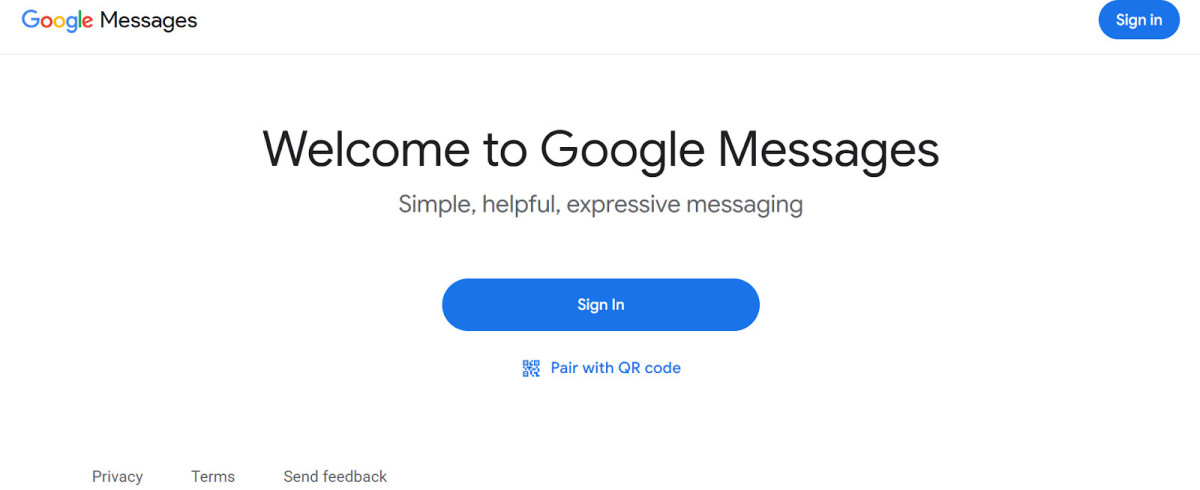
You can use Google Messages on your desktop browser to send text messages from the web.
If you have an Android phone, download Google Messages from the Play Store, if it’s not already installed on your phone. Also, make sure your Android device is signed in with a Gmail account.
Then, make Google Messages your default messaging app. You can do that by going to Settings > Apps > Default apps > SMS app and selecting Google Messages. However, the first time you use Google Messages, it should also prompt you and ask you whether you want to make it the default app.
Next, on your desktop, go to messages.google.com/web in your browser and sign in with your Google account. Make sure it’s the same Google account that you are using with Google Messages on your phone. Once you have signed in, you will need to complete the pairing process by selecting the right emoji on your phone, based on what’s shown on your desktop screen.
Alternatively, you can pair using a QR code. Click on “Pair With QR Code” on Google Messages on your desktop. Then, on your phone, open the Google Messages app and click on your profile picture. Next, navigate to Device Pairing > QR Code Scanner. Finally, use the QR code scanner that appears on your phone to scan the QR code on your desktop.
iPhone Users: Messages for Mac and Phone Link
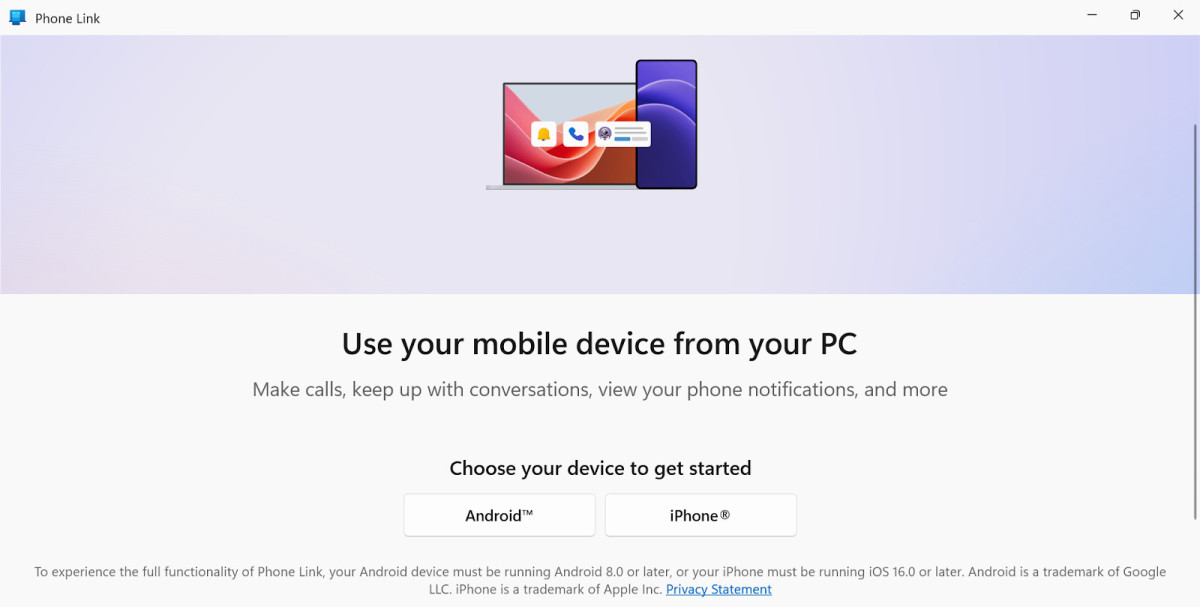
You can use Phone Link to link your iPhone to your Windows computer.
If you have an iPhone, things get a bit more complicated.
If you have a Mac, it’s pretty straightforward. Open the Messages app on your Mac and sign in with the same Apple ID that you are using on your iPhone. Then, go to Messages > Settings > iMessage and select Enable Messages in iCloud. You can then choose which email address or phone number you want to use for sending messages.
However, if you have a Windows computer, things are a little different. There’s no iMessage app for Windows, and iPhones do not support Google Messages. Instead, if you have iOS 16 or a later version, you can use Microsoft Phone Link.
Phone Link comes preinstalled on Windows 11, so you just have to search for “Phone Link” on Windows and launch it.
Then, select “iPhone.” It will show you a QR code. Use your iPhone’s camera to scan the QR code, and it will link your iPhone to your PC over Bluetooth! You will then be able to send and view text messages on your Windows device.
However, Phone Link requires your iPhone to be within Bluetooth range of your device. New messages will not show up if your iPhone is not connected via Bluetooth to your PC. Image sharing, video sharing, and group texts are not supported by Phone Link.
Troubleshooting & Common Errors
If you are having difficulty pairing Google Messages with your phone, make sure you are using the correct Google account. Open Google Messages on your phone and click on your profile image in the top-right corner to check which Gmail account you are signed in with to Google Messages. Then, sign in with the same Gmail account on Google Messages on your browser, or try the QR pairing method instead.
If you are having difficulty using Messages on your Mac, make sure you are signed in with the same Apple ID that you have on your phone and that Messages in iCloud is enabled.
Finally, if you are experiencing issues using Phone Link with your iPhone, make sure that Bluetooth is enabled on your iPhone and that it is within Bluetooth range of your PC.
Conclusion
I hope this setup checklist was useful! Once you have set up your computer with Google Messages, Messages for Mac, or Microsoft Phone link, do a delivery test by sending a test SMS to a trusted contact. Ask them to send you a message as well to see if you get a notification (make sure notifications aren’t blocked from your browser or the Messages app on Mac).
Related posts:
 Uber Driver Login Explained
 How to Recover Your Venmo Account
 Best Smart Home Devices for Beginners in 2025
 What Makes Verizon Webmail Different?
 Fake Locations on iMessage – How to Trick Your Friends
 Unlocking the Power of USPS Barcode Scanners
 How Do I Email AT&T?
 Screen Mirroring On IPhone – How To & Tips
