
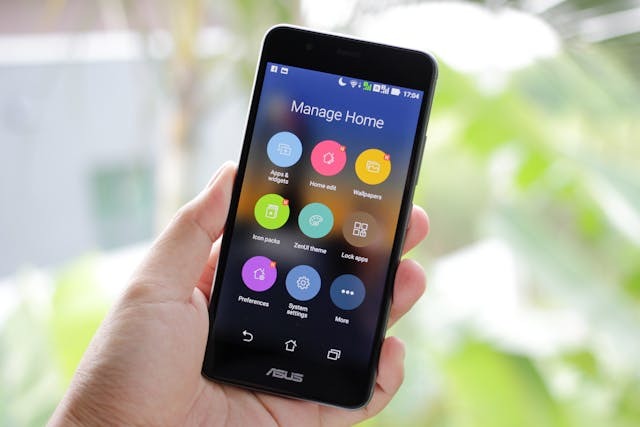
Android phones let you choose from different launchers to manage your home screen.
Are you having difficulty getting back to your original home screen on an Android device? Perhaps your home screen suddenly looks different, and you’re wondering what changed. This guide will show you how to return to your original home screen on your Android.
Diagnose What Changed: Launcher vs. Layout
The first step is to diagnose what changed. If your home screen suddenly looks different, you may have accidentally chosen a different launcher for your phone.
A launcher can replace your default home screen with a different layout and design. This can change not only the way your home screen looks, but also which apps appear on the home screen.
When you choose a different launcher, it might have zero apps on the home screen or include all of the apps by default, which can be confusing if you previously only selected specific apps to include on the home screen. You can check which launcher you are using by going to your settings and navigating to Apps > Default Apps > Home App.
You may have selected either a third-party launcher that you downloaded from the Play Store or an alternative launcher that comes with your phone, such as “Simple View.”
If you never set an alternative launcher, you may have simply changed the layout or design of your home screen. For example, you may have selected circle icons for your apps instead of square icons.
Switch Back to the Stock Launcher (Make It the Default)
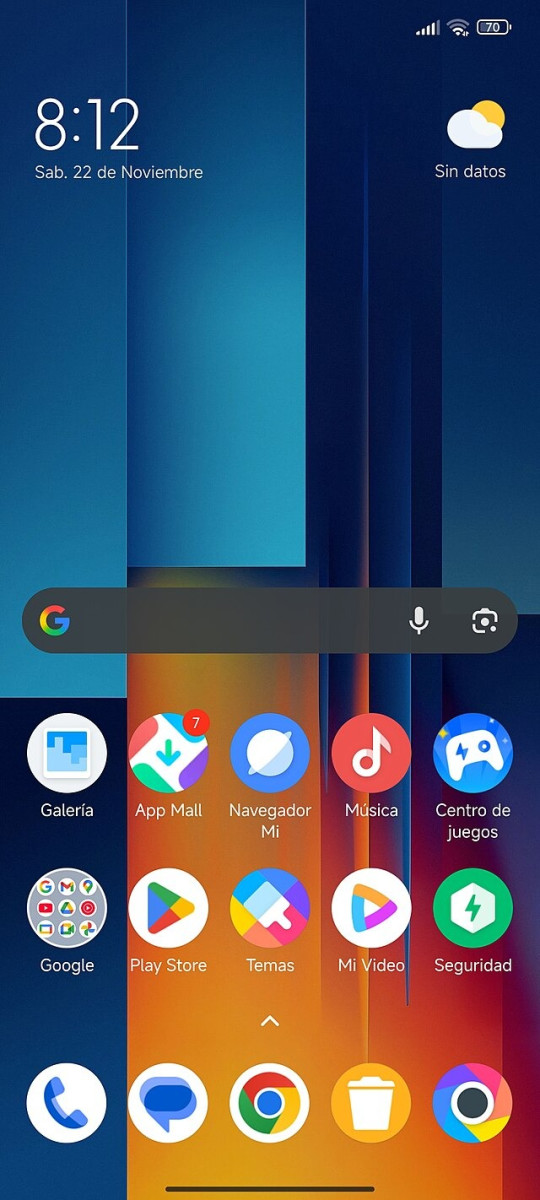
Third-party launchers, like POCO launcher (pictured on a Xiaomi phone), can change your home screen layout.
If you set a different launcher, you should change it back to your built-in launcher if you want to restore your default home screen.
Go to your settings and navigate to Apps > Default Apps > Home App. Then, select “System Home Screen” or something similar. Different manufacturers may name their stock launchers differently. On Samsung, for example, it might be called One UI Home. On Pixel, it might be called Pixel Launcher.
Reset the Home Screen Layout
If you simply want to reset the layout, here’s what you need to do. First, go to the Apps list in your settings and find the stock launcher app. This might be called System Home Screen, One UI Home, Pixel Launcher, or something else, depending on the device manufacturer.
Tap on the app and navigate to the Storage & Data section. There, clear the storage from the app. This will remove all of your settings and reset it to default settings.
Some third-party launchers may also have a setting that allows you to reset it to the default settings, but this is not standard on Android devices, which is why you may need to use the “clear storage” route.
Restore Icons, Folders, and Widgets From Backups

Some launchers, like Nova Launcher, let you back up your launcher and restore your settings.
Another option is restoring your home screen setup from a backup. However, this only works if you are using a launcher with a backup option. The stock launcher on your phone might not have that option, but many third-party launchers do. For example, the popular launcher Nova Launcher offers a backup option that allows you to restore your settings.
Restoring your launcher settings from a backup is a good option if you don’t want to reset your settings to the stock settings, but rather restore settings that you manually configured but have since lost.
Re-Add Missing Apps and Widgets Manually (If No Backup)
If there is no backup available, and you want to restore specific settings rather than restore all of the launcher’s settings to the stock settings, you might have to manually reconfigure everything.
You can usually long-press on your home screen to open up wallpaper options, widgets, and additional settings.
For example, you may also be able to configure the app drawer (for example, whether it should show recently used apps), the number of icons in the dock grid at the bottom of your screen, and more, depending on the launcher. Play around with the settings until you configure everything correctly.
Clean Up and Prevent Reoccurrence
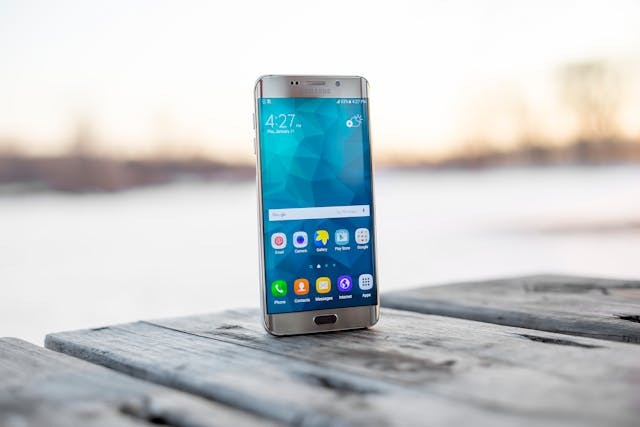
Samsung phones allow you to lock the home screen to avoid accidentally removing or deleting apps.
I recommend uninstalling launchers that you don’t use so you don’t accidentally set them as the launcher. Note that you can’t uninstall built-in stock launchers, but you can uninstall third-party launchers you installed from the app store.
If your launcher offers a backup setting, backup your launcher regularly so you can restore your settings easily.
Some launchers may offer the ability to lock the launcher settings. For example, on your Samsung, long-press on the home screen, tap on Settings, and then toggle on “Lock Home screen layout.” This option prevents you from accidentally removing or repositioning apps and widgets on the home screen.
Device-Specific and Edge Cases to Know About
If you have a work-managed phone, you may not be able to change the launcher settings.
Did you know that you can change the navigation mode of an Android phone? By default, Android phones usually have a three-button mode, in which there are three icons at the bottom. One is the back button, the other opens the app switcher, and the third returns you to the home screen.
However, you can also switch to a two-button navigation mode, in which you only have the back button and the home button. Finally, you can also choose gesture mode, in which there are no icons on the bottom. Instead, you use gestures to return to the home screen or go back.
To change the navigation mode, go to Settings > System > Gestures > System Navigation. It might also be under Settings > System Management > System Navigation. Or, just search for “system navigation” in your phone’s settings.
Another thing to note is that in your accessibility settings, you can change the font and display size. Go to Settings > Shortcuts & Accessibility > Accessibility, or search for “accessibility” in your phone settings, where you can control these and other accessibility settings. If the font and display size are very big, app icons and texts may appear bigger.
Finally, if you have an enterprise managed phone (a work phone given to you by your company), there may be some company settings on there that you can’t remove, which can affect your launcher and layout.
Conclusion
I hope this guide helped you get your settings back to where you want them. Remember, you can download various third-party launchers from the Play Store, such as Microsoft Launcher, which can help you further customize your home screen layout and features.
Related posts:
 How to Center the Bio Text on Instagram?
 Can iPhone Users See When Android Users Are Typing?
 Decoding the Debate: Is iOS App Development Easier Than Android?
 Introduction to 5G Network Slicing for Enterprise Use Cases
 How to Solve Failed Download Errors on Macs?
What Is Go90
How to Solve Failed Download Errors on Macs?
What Is Go90
 Top Routers for Optimal Oculus Quest 2 VR Performance
How To Install Minecraft Mods Windows 10
Top Routers for Optimal Oculus Quest 2 VR Performance
How To Install Minecraft Mods Windows 10
