Did you just buy a new iPhone, but you also own an Apple Watch? In this guide, I will show you how to switch to a new iPhone when you have an Apple Watch to ensure the new phone continues to work seamlessly with your Apple Watch. Let’s get into it.
Check Requirements & Prepare Both Devices
First, update both your old iPhone and your Apple Watch to the latest versions of iOS and watchOS. This could take some time, so have patience. Keep them plugged in to charge as they update.
Your new iPhone will probably already have the latest iOS version. However, if you bought a used or old model, make sure to update it as well.
Back Up the Old iPhone (Captures Watch Data)
The next step is to back up the old phone before making the switch to ensure that you don’t lose any data.
To ensure that all health data is backed up, make sure Health is turned on as well. On your old phone, go to Settings > [Your Name] > iCloud > See All and make sure Health is toggled on.
Next, back up your phone using iCloud. Make sure your phone is connected to a Wi-Fi network and go to Settings > [Your Name] > iCloud > iCloud Backup > Back Up Now.
Stay connected to the Wi-Fi network until the backup is complete.
Remember, backing up your phone also backs up your Apple Watch.
Set Up the New iPhone
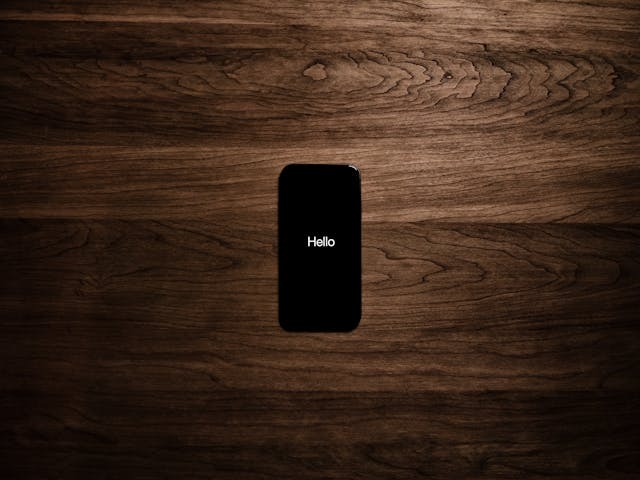
The next step is to set up your new iPhone. Turn it on until you see “Hello” in many languages and follow the on-screen prompts to set it up. Since you have the old phone nearby, choose the option to set up your new phone using your old phone using Quick Start, which quickly and easily transfers your data to your new phone. You can see more instructions here.
For Quick Start to work, your old phone must have iOS 11 or later and be connected to Wi-Fi and have Bluetooth enabled. You also need to keep your new phone next to your old phone.
You will need to connect your new phone to Wi-Fi or cellular service and may have to set up and activate cellular service, as well as set up Face ID and Touch ID. When you set up cellular service for your new phone, it will work with your new Apple Watch as well. You can then transfer the data from the old device, either directly or through iCloud.
When setting up your iPhone, if it asks you if you want to use your Apple Watch, make sure that your watch is unlocked and on your wrist and then follow the on-screen prompts.
Pair & Use the Watch
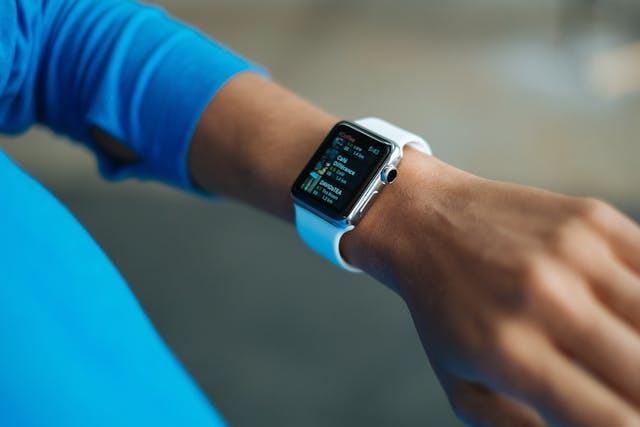
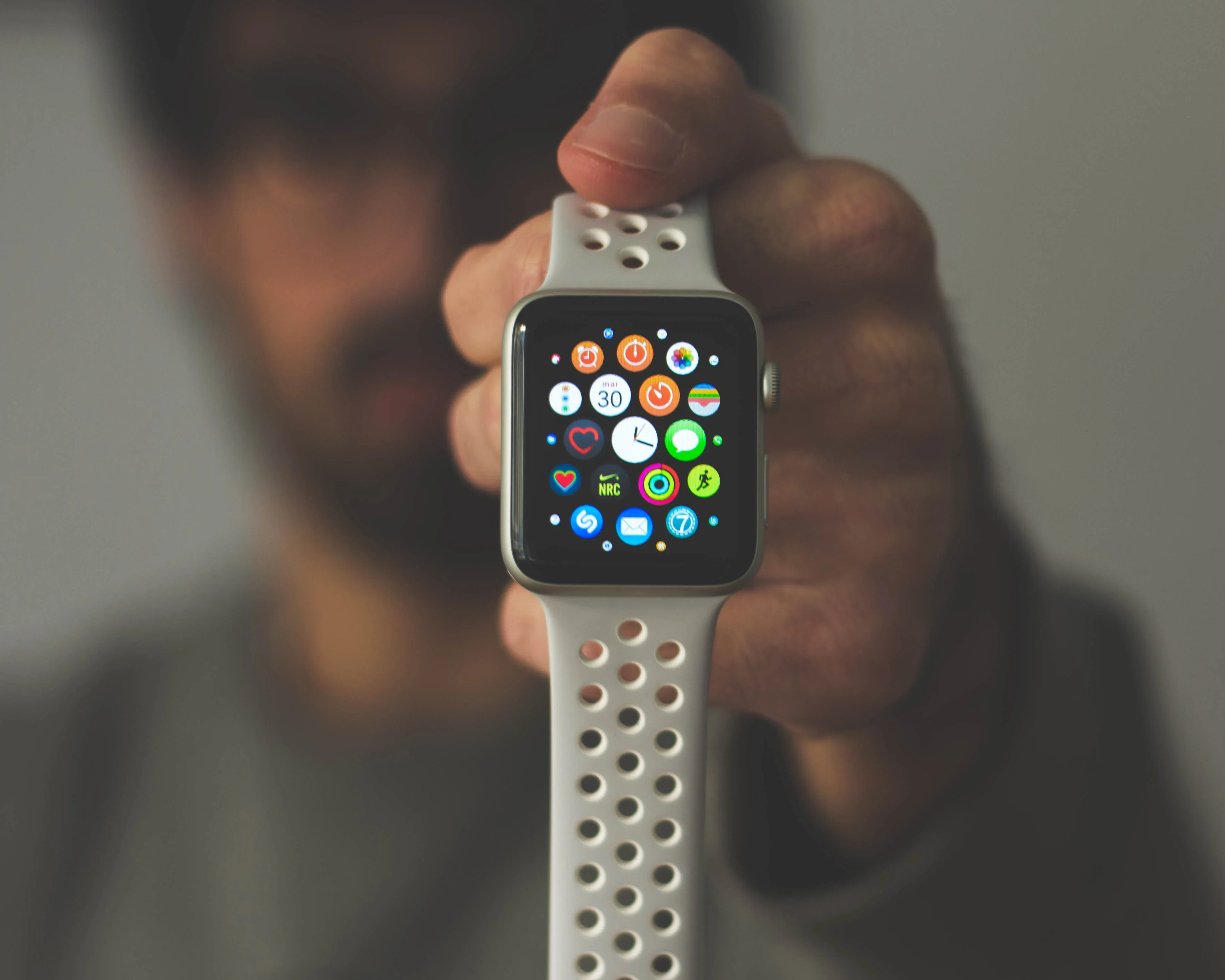
After setting up your new iPhone, you can pair your watch with your phone using the Watch app, even if you didn’t pair it during the setup process.
Once your new phone is set up, open the Apple Watch app on the new phone while wearing your Apple Watch on your wrist (make sure it is unlocked). If your phone asks you whether you want to use your watch, follow the on-screen prompts to set it up.
However, if your phone asks you to pair your watch, you must first unpair it following these instructions and then set up and pair your Apple Watch again.
If Pairing Fails (Quick Fixes)
If pairing wasn’t completed during the phone setup, you can go to the Apple Watch app and tap on the My Watch tab. Click on All Watches. You will see your watch along with a Pairing Not Complete status. Click on Finish Pairing (make sure you are wearing the watch on your wrist and it is unlocked) to complete the process.
If your watch gets stuck on the black screen with the white Apple logo, press and hold both the side button and the Digital Crown until your watch restarts. Then, press and hold the Digital Crown and click on Reset.
Pair it with your iPhone by wearing the watch on your wrist and ensuring both the phone and watch are unlocked, and then bring the phone near the watch until the “Use your iPhone to set up this Apple Watch” message appears on your iPhone.
If you no longer have your old iPhone but want to set up your watch with your new phone, you should first erase your Apple Watch following these instructions. Then, pair it with your new phone by bringing them close to each other, as mentioned in the previous paragraph. Make sure you are signed into iCloud on your new phone.
Conclusion
Apple makes it easy to pair an Apple Watch with a new iPhone. Most of the time, the process is fairly straightforward. Just set up the new iPhone, and it will ask you during the setup process whether you want to use it with your Apple Watch. However, if pairing didn’t work during setup for whatever reason, you can always complete this step later.