

Google is the most popular search engine, with Yahoo only accounting for 2.9 of the global market share, according to Statista.
Is your Mac defaulting to Yahoo’s search engine? While some people prefer Yahoo, you may want to switch to another search engine, such as Google or Bing. In this guide, I will show you how to remove Yahoo Search from your Mac.
Why Does Yahoo Search Appear on Your Mac?

Yahoo also offers news and email, in addition to being a search engine.
Yahoo is a search engine, just like Google is a search engine.
Google.com is the most popular search engine and the one most browsers use by default, but other popular ones include Yahoo, Bing, and DuckDuckGo.
If your browser is using Yahoo Search, that’s typically due to one of two reasons. Either you set Yahoo as the default search engine, or a virus is hijacking your browser and redirecting it to Yahoo by changing its default search engine.
Viruses can do this for several reasons, but the most common one is that it will also display ads alongside the search results by injecting adware into your browser. It may also redirect you to websites that it wants to promote, including spammy websites like gambling websites, phishing websites, and other spammy websites.
So, to remove Yahoo Search from your Mac, the first step is to check your browser’s default search engine. It may have been set to Yahoo, which is the most likely cause.
The second step is to check for viruses and malware. Even though macOS is generally secure, it is still possible for Macs to get infected with viruses, malware, and adware.
Update Your Browser’s Preferences
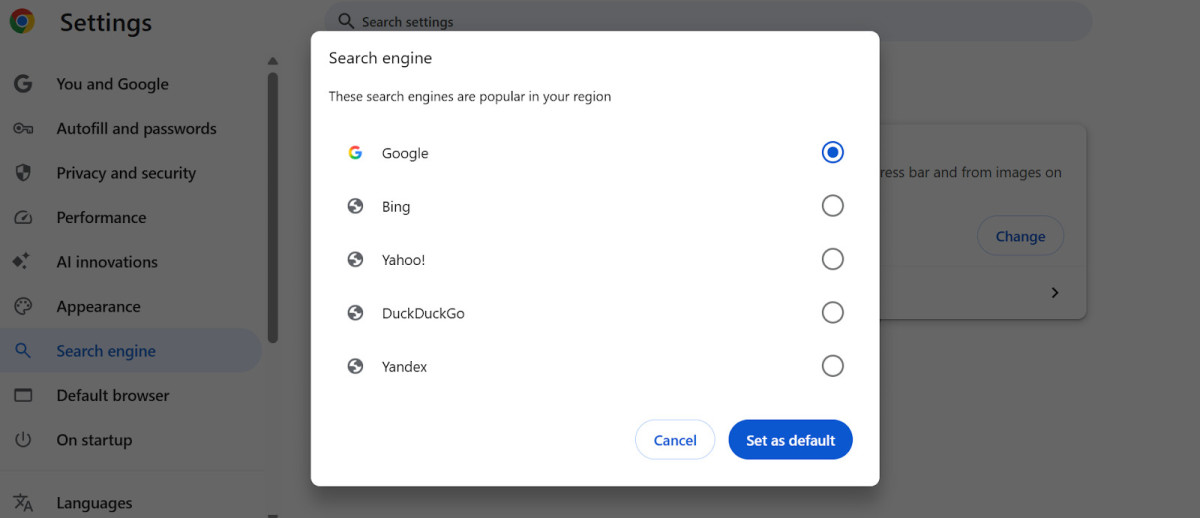
You can change your default search engine on Chrome.
On Safari, navigate to Safari > Settings from the top-left menu and then click on the Search tab. Next to “Search Engine,” choose a different search engine from the drop-down menu, such as Google or DuckDuckGo instead of Yahoo.
On Chrome, click on the three dots in the top-right corner. Navigate to Settings > Search Engine and then choose a different search engine.
Similarly, on Firefox, navigate to Settings > Search and change the default search engine. On other browsers, you should be able to change the search engine in the settings as well. Just look for a section in the settings that is called “Search” or “Search Engine.”
Check for Viruses and Malware
If your browser keeps redirecting to Yahoo, your Mac may have malware.
If you didn’t change your default search engine to Yahoo, and you are still getting search results from Yahoo, there could be a virus installed on your computer that is redirecting it to Yahoo.
The first thing to suspect is a rogue extension. If an extension is infected with malware, it may redirect your browser to another search engine, like Yahoo, or display ads.
Start by disabling all of the extensions on your browser, whether that is Chrome, Firefox, or Safari. Then, enable all of your browser extensions one by one.
Each time you re-enable a browser extension, search for something using your browser. If it redirects to Yahoo only after re-enabling that extension, that extension is causing the issue, so make sure to uninstall it.
If that doesn’t change the issue, head over to your Applications folder on your Mac and uninstall any application that is unfamiliar. An application that is infected with malware could also be causing the issue.
Update all of your applications and operating system as well. Make sure to do this regularly, as that ensures any bugs and security vulnerabilities are patched.
Finally, if none of that works, run an antivirus scan on your computer using an antivirus software such as Avast or Malwarebytes. I recommend doing a deep scan, which may take some hours. It will have a better chance at discovering any malware that may be hidden in your system files or elsewhere on your computer.
Note that a deep scan can take a few hours and also use up significant resources, depending on how large your computer system is. Therefore, I recommend doing it at night while your computer is connected to a power source, so it doesn’t lose power while you are running the scan.
If that doesn’t help, try resetting your browser to its default settings. Alternatively, uninstall and reinstall your browser. This should reset it to the default settings. However, it may also remove your preferences and settings, which is why I am only recommending it as a last option.
Conclusion
I hope this guide was helpful, and you were able to remove Yahoo Search from your laptop! It’s usually as simple as just changing the default search engine in your browser, but if that doesn’t work, check for viruses and malware that may be causing it.
Related posts:
 How To Block Yahoo Search
 How To Change From Yahoo To Google On Mac ?
 Yahoo Redirect Virus Mac – All You Need To Know
 Is Safari A Search Engine Or A Browser?
 How To Remove Yahoo Redirect Virus From Safari ?
 How to Setup Yahoo Email on iPhone?
 How To Change Search Engine On Mac ?
 How to Add Yahoo Mail to iPhone?
