
WPS, or Wi-Fi Protected Setup, is a Wi-Fi standard that allows you to quickly connect a device to your Wi-Fi network without entering a password. In this guide, I will explain what WPS is, how to use it, and how to find the WPS button on your router. I will also cover some security concerns you should know about before using it.
Understand WPS Before You Look for the Icon
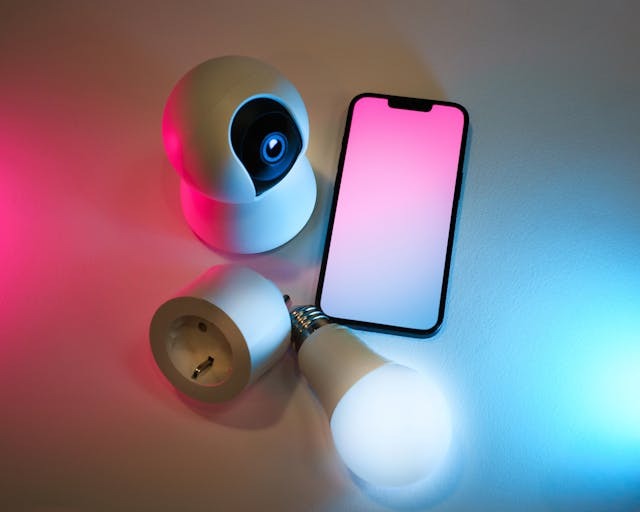
WPS makes it easy to connect cameras and many other IoT devices to the network.
First, though, what exactly is WPS?
WPS, as mentioned, stands for Wi-Fi Protected setup, and it’s a Wi-Fi protocol for quickly connecting devices to your Wi-Fi network. It’s particularly useful when connecting printers, security cameras, and IoT devices to the internet, especially if those devices do not have a digital interface on which you can easily enter the password to connect it to the internet.
For example, many printers have small screens that are difficult to navigate. Many older printers may have no screen at all. WPS simplifies the process.
The way it works is simple. Let’s say you want to connect a printer. Just press the WPS button on your router to activate WPS.
Then, press the Wi-Fi setup button on your printer, and it will connect to the Wi-Fi network automatically. On some devices, like on printers with digital interfaces, you may need to go to your Wi-Fi settings and select the WPS option or manually select the Wi-Fi network.
Once you have connected the device, WPS will be shut off automatically for security purposes, so other devices can’t connect. If you don’t connect any device, it will time out after a short amount of time (usually two minutes).
WPS also has a PIN mode option, in which an eight-digit pin must be entered on the connecting device. You may think that this is more secure than the non-PIN option, but actually, it’s not. More on that later, though.
For now, let’s get into how to recognize the WPS symbol.
Recognize the WPS Symbol
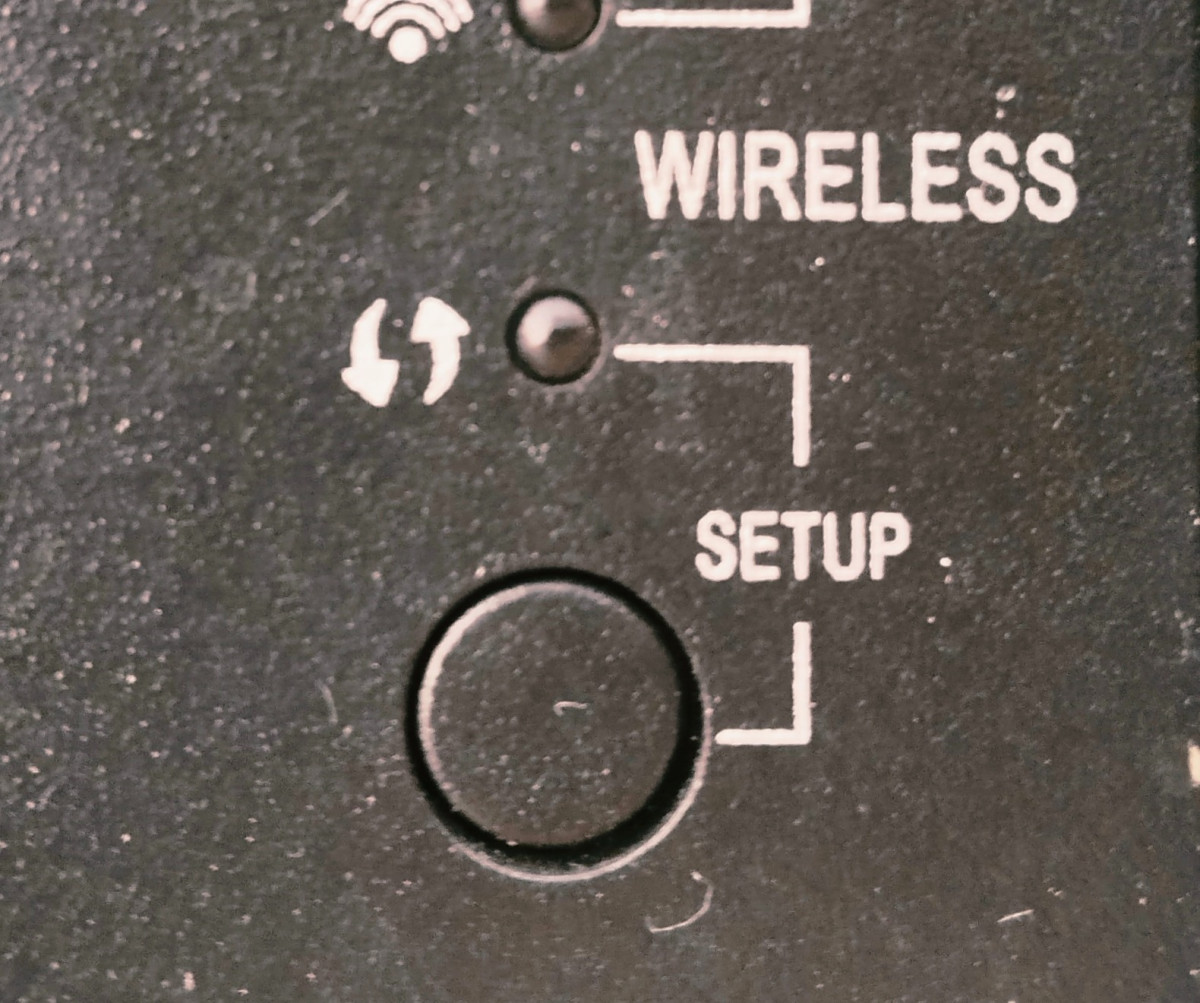
The WPS symbol, like the one displayed on this Cisco router, consists of two arrows chasing each other, one facing up and the other facing down.
WPS is a protocol created by the Wi-Fi Alliance. As such, it has a standardized symbol that is similar on all routers that use it. It looks like two arrows chasing each other, creating a circle, with one arrow pointing up and the other pointing down.
It can be a bit hard to spot, which is why you may need to take a close look at the router until you see it. The arrows may or may not be enclosed by a surrounding circle.
They may be accompanied by the letters “WPS,” but this depends on the manufacturer. Some routers may not show the arrows and may only display the letters “WPS.”
Some routers may use a generic text like “Pair” instead of WPS, and some may use manufacturer-specific protocols such as QSS or AOSS (which is compatible with WPS), but these are less common. The standard is WPS.
Find the WPS Control: Hardware Button vs. Software Toggle
On most routers, the WPS button is a small button that may be flat, raised, or depressed. If the router has a digital interface, it could also be a digital button.
Some routers may not have a physical WPS button, but you can still enable WPS and click a virtual WPS button in the router admin panel by logging in from your browser while connected to the network. Check the back of your router for the IP address to enter into your browser bar and the username and password to log into the settings.
You will also need to figure out how to connect your device to the Wi-Fi network. This depends on the device, so you should check the user’s manual or the manufacturer’s website for more instructions.
For example, on printers, TVs, cameras, and other devices without a digital interface, you may need to press a physical Wi-Fi button on the device to connect it to the network.
On printers with a digital interface or touchscreen panel, you may need to select the Wi-Fi icon on the screen. On many devices, like Windows PCs, you need to manually select the Wi-Fi network from the list of networks (although you won’t have to enter a password).
Some devices, like many newer Android models, may not include WPS support at all.
Read the WPS Light to Understand Status
Your router may have a light to indicate its WPS status. Here is what the light generally means, but please note that this can vary depending on the router:
- If the light is solid green, it usually means WPS is active, and you can now connect a device to it.
- If the light is blinking green, it typically means a device is currently connecting, or that the connection was successful.
- If the light is red, either blinking red or solid red, it usually means that WPS is not working, or the device has failed to connect.
Some routers may only have a flashing light to indicate that a device has connected successfully.
This is highly dependent on the router, so consult the user manual for more information about its WPS status lights, if any.
The device you are connecting to the internet may also have a light that flashes once the connection is established. For example, many HP printers have a Wi-Fi light that starts flashing once a connection is established via WPS.
Distinguish WPS methods: Push-Button vs. PIN

The WPS PIN method can easily be exploited by hackers using brute force attacks.
Earlier, I touched upon the fact that there are two types of WPS connection methods.
The push button method allows you to simply push a button on your router and then connect any device to it instantly, without entering any sort of password or PIN.
The second method requires you to enter a PIN on the connecting device. This PIN consists of eight digits, and it’s usually printed on the side of the router. It’s different from the regular Wi-Fi password and is designed to be easier to enter, since it only consists of numbers and can be typed on a printer/fax machine with a numerical type pad, for example.
At first glance, this makes WPS more secure. After all, you can’t just connect any device to the router; you need to know the PIN. However, the opposite is true. WPS PINs are incredibly insecure.
The PIN consists only of numbers and is essentially split into two parts, each part consisting of only four digits. However, the last digit is a checksum of the first seven digits, so the second half has only three digits that need to be figured out.
This actually makes them incredibly easy to crack with brute force (in other words, simply trying every possible combination until the correct PIN is deciphered).
That’s because the first part has four digits, resulting in 10,000 possible combinations, while the second part has only three digits that need to be figured out, resulting in 1,000 possible combinations. In total, there are only 11,000 possibilities that need to be tried (at the maximum) before the PIN is decrypted.
What makes this worse is that many routers do not have a brute force defense mechanism for failed attempts, allowing attackers to use software to decipher the PIN within a matter of hours. The main problem, though, is that once hackers figure out the PIN, they will be able to access the router’s actual password and the entire network as well.
In fact, various software can be purchased by malicious actors to allow them to gain access to a Wi-Fi network via the WPS PIN.
Therefore, the WPS PIN feature should be disabled, if the router allows it. Unfortunately, not all routers allow you to disable it. Some routers may only allow you to turn off WPS altogether and not the WPS PIN feature specifically.
Additionally, according to CISA, some routers may not actually disable WPS even if the settings indicate that it is disabled, so that’s something to be aware about as well.
Apply Security Hygiene When WPS Is Present
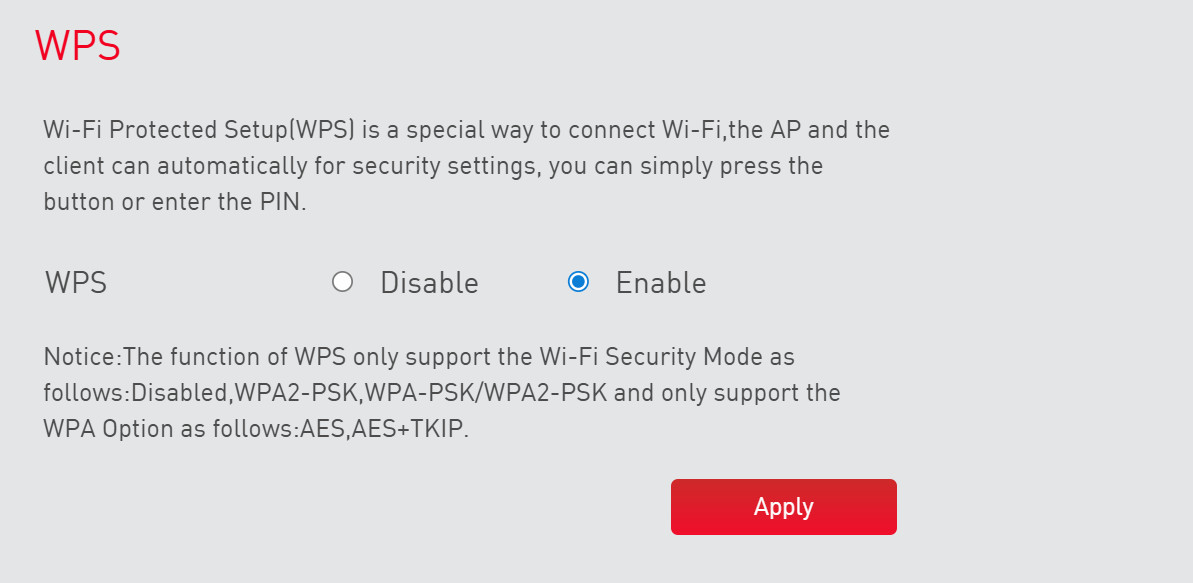
You can disable the WPS function inside your router admin panel.
If you must use WPS, here are some safety tips to help you stay safe:
- Disable the WPS PIN feature by logging in to your router admin panel, if your router allows you to disable it independently of the WPS push button feature.
- If the router allows it, change the default WPS PIN, even if you have disabled it.
- As a general rule, keep WPS deactivated entirely. Only activate it when you need to connect a device. After connecting the device, disable it again from your router’s settings.
- Keep the router in a secure place. If you keep it in a publicly accessible place, anyone will be able to connect a device to the network and potentially access the network by pressing the WPS button.
- Periodically review all devices connected to the network to ensure no unknown devices have been connected.
- Change the default router admin login. Most routers use a basic default login and password, such as “admin” and “password” or “admin” and “admin.” That would allow anyone to access the router settings and re-enable WPS.
- Make sure you use a strong password and enable WPA2 or WPA3 encryption for your Wi-Fi. Avoid older, insecure security protocols.
Conclusion
I hope this guide helped you learn more about what WPS is, how it works, and how to identify the WPS button on your router.
Remember, WPS has inherent security risks. If the PIN method is enabled, a brute force attack can allow a hacker to access the network. Even if only the push button method is enabled, anyone with physical access to the Wi-Fi router can connect any device. So, only enable WPS when needed, and keep the router in a secure location.
Related posts:
 What Hdeletes When You Delete Iphone From Icloud
 Introduction to 5G Network Slicing for Enterprise Use Cases
 Mac Won’t Restart – Troubleshooting Tips
 A Comparison of Samsung 980 and 970 EVO Plus
 How to Secure Your System with Virtual Patching
 How to Find Your Lost iPhone Using Apple Watch
 How to Tackle the Dreaded Power Drop Issue on Your iPhone
 How to Connect Bose Headphones to Your Macbook
