

Emojis can be a fun way to communicate with others on Roblox, but figuring out how to use them may not be the most straightforward thing.
Did you know that you can use emojis on Roblox? When chatting with other people using the built-in Roblox chat, you can send emojis, whether you are on a desktop or mobile device. Read on to learn how!
Confirm Prerequisites
Not all games have the chat feature enabled. If it’s enabled, you can open the chat by clicking on the chat icon or pressing on /.
You also need chat enabled in your settings. Go to your Roblox settings and navigate to Settings > Privacy and Content Restrictions > Communication. Here, you can enable Experience Chat for in-game communication and Direct Chat for 1-on-1 communication.
Use the Emoji Keyboard on Mobile (iOS and Android)
To use emojis in Roblox on mobile, just use your keyboard’s built-in emojis. Switch to the emojis section on your keyboard (look for an icon on your keyboard that looks something like this: ) and select an emoji.
Use the Emoji Picker on Desktop (Windows and Mac)
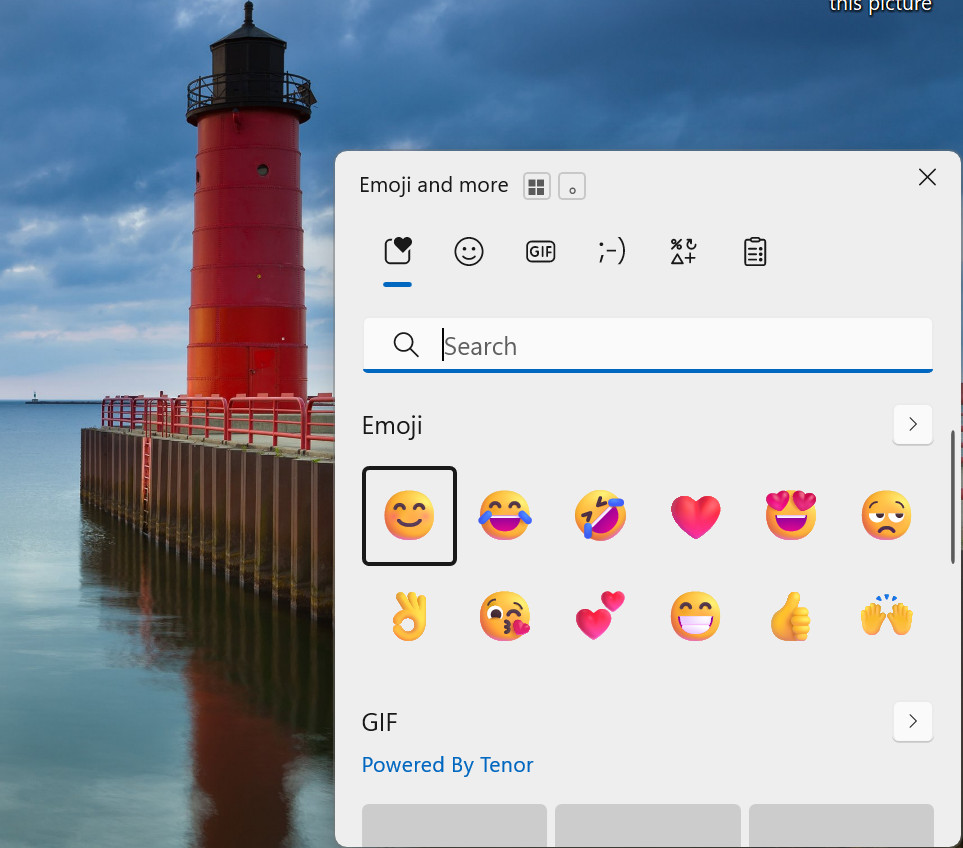
To open the emoji picker on Windows, press on the Windows key and the colon/semicolon key at the same time.
On Windows, you can use the built-in emoji picker by clicking on the Windows key + the colon and semicolon key on your keyboard. This will bring up your emoji picker, allowing you to select from emojis.
On a Mac, press on FN + E at the same time to open the emoji viewer.
On both Windows and macOS, you can then search for emojis by entering a search term, such as “fire.”
Copy and Paste Emojis

You can also copy and paste emojis from sites like emojicopy.com.
If the emoji picker is not working, you can always copy and paste emojis. This is sometimes a good option if your keyboard is missing an emoji for whatever reason.
I recommend these three websites:
Just copy and paste the emoji as you would any other text.
Keep It Compliant and Safe
Make sure to follow chat etiquette. Don’t use emojis that can be seen as harassing or inappropriate. Avoid harassment and cyberbullying in your texts, as inappropriate content may be redacted by the Roblox chat filter and get you banned. Make sure to follow community guidelines when chatting with others.
Conclusion
We hope you enjoyed this article! Whether you’re on a desktop or mobile device, you can easily use emojis using your keyboard or your computer’s emoji picker. If that doesn’t work, you can always copy and paste emojis as an alternative.
Related posts:
 Inverted Filter Tiktok
 How to Make the Most of Your iPhone’s Emergency Contact Feature
 How To Get More Followers On Tiktok
 22 Facts About GTA San Andreas
 Why Did My Apps Disappear
 How to Make a Video Louder On iPhone?
 36 Facts About Quora – Quora Digest
 How to Change Default Download Location on Windows 10 or 11?
