

There are a few ways to close pages on your browser, whether you want to close a single tab or an entire window. In this guide, I will go over how to close pages on your browser and give you some useful shortcuts, depending on your operating system, that can make this easier. If you are struggling with an unresponsive page that refuses to close, don’t worry! I will cover that as well.
While this may seem like a simple topic, there’s actually a lot to unpack here, so let’s get into it!
Identify Your Platform and Browser Before Starting
First, identify the platform and browser you are using. Which platform are you using? Are you on a Windows, Mac, Linux, Android, or iOS device?
Also, which browser are you using? Are you using Chrome, Firefox, Safari, Edge, or another browser? We will cover all of those four major browsers here.
Other browsers may have slightly different settings, although the shortcuts mentioned here should work for all of them. Also, many Chromium-based browsers have similar settings as Chrome itself.
Once you have identified your platform and browser, continue reading.
Close the Current Tab With the Fastest Method (Desktop)
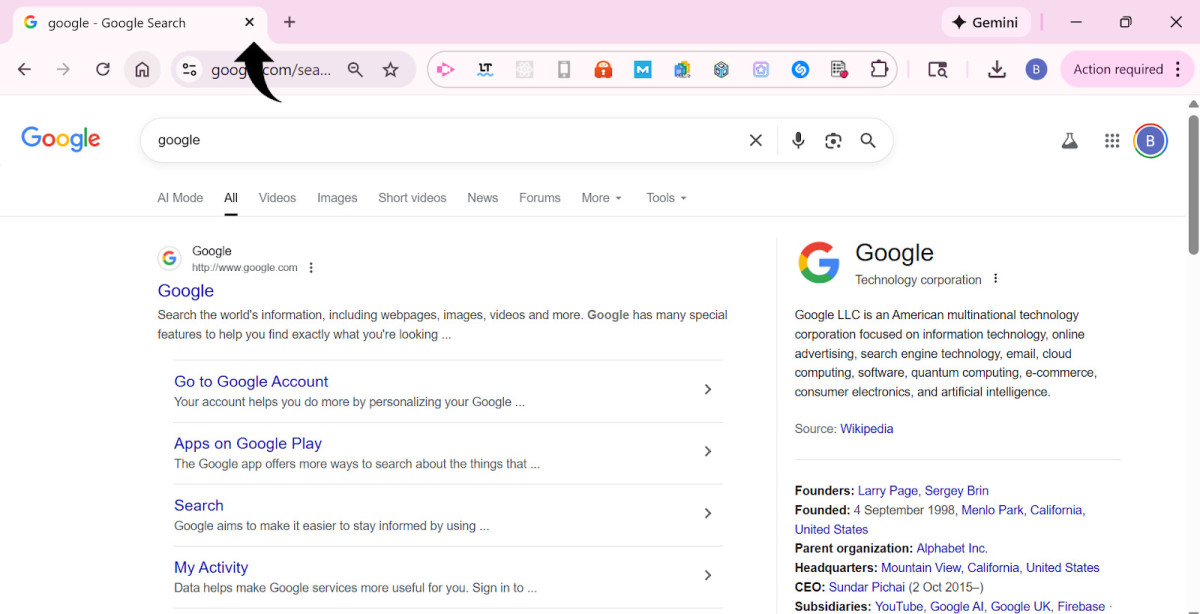
Click on the “X” icon to close a tab.
If you want to close the current tab, there are two easy ways to do so. The most common and well-known method is to simply click on the “X” icon at the top of the current tab.
However, there is also a faster way to do this: by using shortcuts.
On Windows or Linux, use CTRL + W or CTRL + F4 to close the current tab. This works on all major browsers, like Chrome, Edge, and Firefox.
On a Mac, use Command + W or Command + F4.
Close Many Tabs at Once
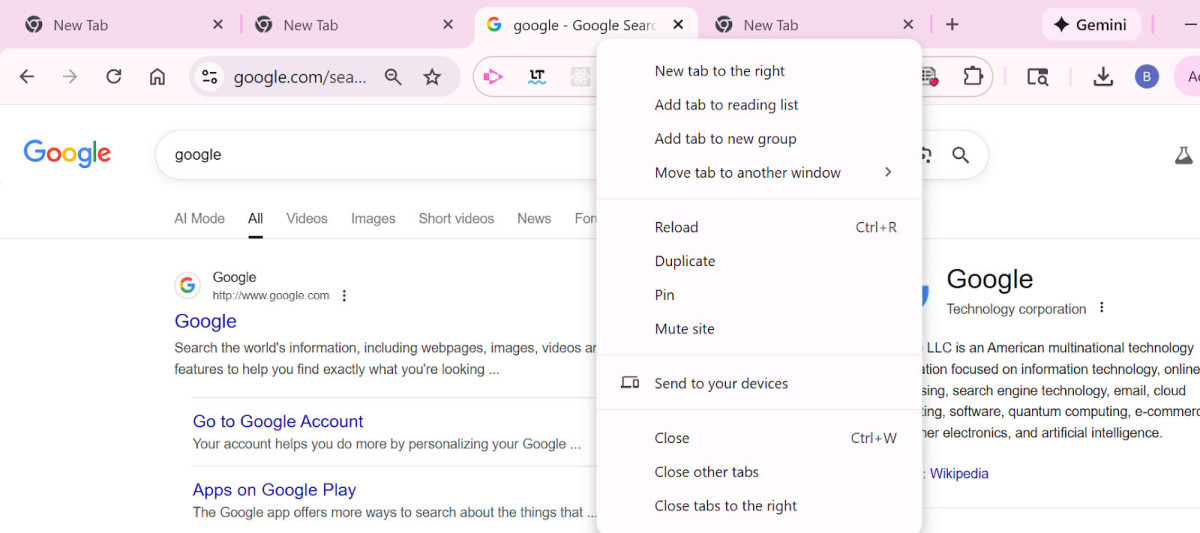
Right-click on a tab on Chrome or Edge to open up additional options, including closing all other tabs or only all tabs to the right.
To close many tabs at once on Chrome, Edge, or Safari, right-click on the tab you want to keep. Then, click on “Close Other Tabs.” This will close all the tabs except the one you selected. Another option you can choose is “Close Tabs to the Right.” This will close all tabs to the right of that tab.
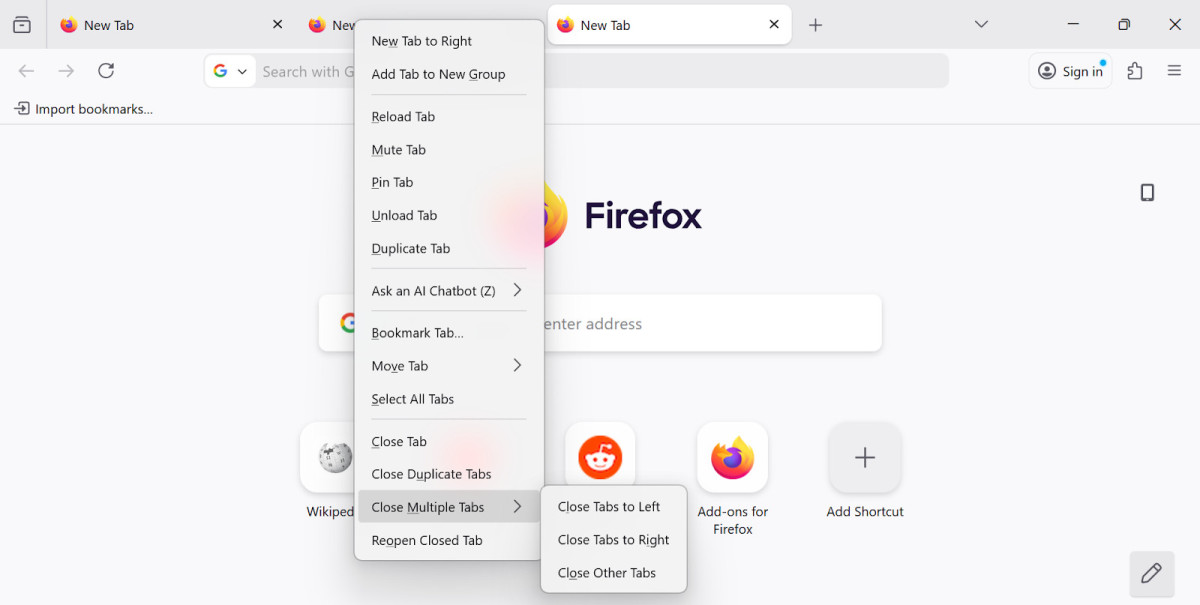
On Firefox, you can also close all tabs to the left.
Firefox gives you additional options when you right-click on a tab. You can choose “Close Duplicate Tabs” to close all duplicate tabs. Or, hover your mouse over the “Close Multiple Tabs” option and choose from the following options:
- Close Other Tabs: This closes all other tabs.
- Close Tabs to Right: This closes all tabs to the right of the tab you right-clicked on.
- Close Tabs to Left: This closes all tabs to the left of the tab you right-clicked on.
Close a Whole Window
If you want to close the entire window, including all the tabs opened in that window, you can either click the “X” button in the top-right of the window (on Windows) or the red icon on the top-left of the window (on Mac).
Alternatively, you can use a shortcut:
On Windows or Linux, use CTRL + Shift + W.
On Mac, use Command + Shift + W.
These commands will close the entire browser window.
Manage Tabs on Phones and Tablets
Different mobile browsers have different ways to close tabs.
On Chrome, click on the number inside a square at the top of the screen. This number indicates how many tabs you have open.
After you click on it, you can view all tabs and tab groups. Here, you can do two things:
1. Close a tab or tab group: Swipe right on a tab or tab group, or click on the “X” icon, to close it. If you want to close a specific tab in a tab group, first tap on that tab group and then swipe right on the specific tab you want to close.
2. Click on the three dots in the top-right corner. Click on “Close All Tabs” to close all tabs. To close only specific tabs, click on “Select Tabs” and then select which tabs you want to close, after which click on the three dots in the top-right corner again and then click on “Close Tabs.”
On Safari, click on the tabs icon (which looks like two squares), which is usually located in the bottom right of the screen, and then click on the “X” icon in the corner of any tab to close it. To close all tabs on Safari, long-press on the tabs icon and then select “Close All Tabs” and follow on-screen instructions.
On Firefox, click on the number in the square at the top of the screen. Then, click on the three dots and select “Close All Tabs” to close all tabs. To close individual tabs, swipe a tab to the right or click on the “X” icon in the tab’s corner.
Handle Pages That Won’t Close or Are Frozen

If a page is unresponsive, your browser will usually ask if you want to wait for it to become responsive or forcefully close the browser tab.
I recommend forcefully closing the browser tab and then trying again, but not before you close unnecessary applications and tabs that may be using up too many resources.
However, what if a tab becomes unresponsive to the point that it freezes your whole computer, and you can’t even close the tab?
In that case, I recommend using the Task Manager to forcefully close the browser.
On Windows, click on CTRL + Shift + Esc to open the task manager. Find the browser, right-click on it, and click on “End Task.”
On a Mac, click on Option + Command + Esc. This will open the Force Quit Applications window. Select the browser and click on “Force Quit” to forcefully close it.
A lot of people don’t know this, but Chrome actually has its own task manager built into it as well. This allows you to forcefully quit a specific tab rather than forcefully quit Chrome entirely. To open the Chrome Task Manager while using Chrome, click on Shift + Esc. Under the Tabs & Extension tab, select a tab and then click on End Task. This won’t close the tab, but it will cause it to stop running, after which it will be easier to close it by clicking on the “X” icon.
On mobile devices, use the App Switcher to forcefully close the browser app. On Android, click on the app switcher icon at the bottom of the screen (it looks like three horizontal lines). On iOS, swipe up from the bottom of the screen towards the middle of the screen, and hold your finger at the middle of the screen until the app switcher appears. Find the browser app and swipe it up towards the top of the screen to forcefully close it.
Prevent Mistakes and Recover Accidentally Closed Pages
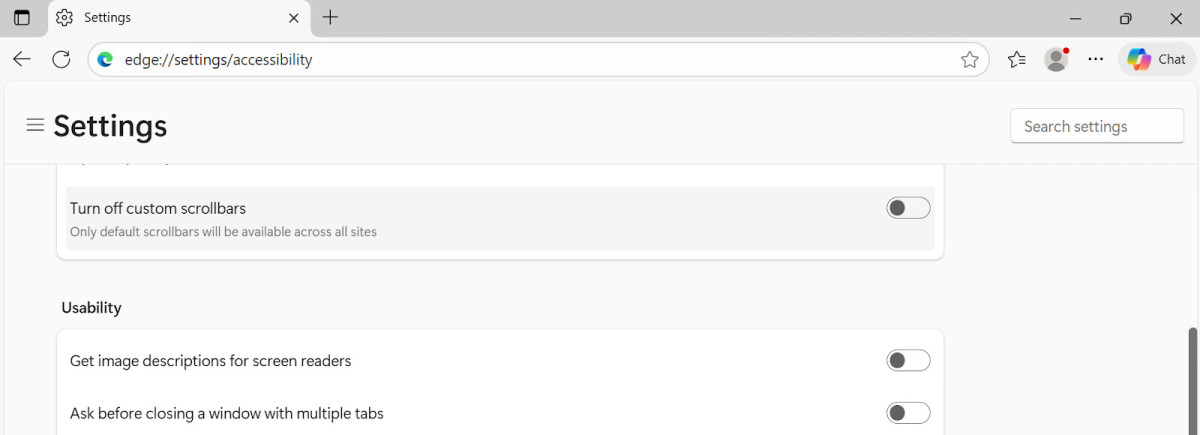
Turn on the “Ask before closing a window with multiple tabs” section on Edge to prevent yourself from accidentally closing multiple tabs at once.
If you accidentally closed a tab or window, use the CTRL + Shift + T shortcut (on Windows) or the Command + Shift + T shortcut (on Mac) to reopen the recently closed tab or window.
You can do this multiple times, each time opening the most recently closed tab or window. For example, if you closed Tab A and then closed Tab B, using this shortcut will, at first, reopen Tab B. If you use the shortcut a second time, it will reopen Tab A.
But what if you want to prevent such mistakes in the future? Some browsers allow you to enable an option that forces you to confirm before closing multiple tabs at once.
On Microsoft Edge, you can go to Settings > Accessibility and scroll down to the Usability section, where you can turn on the “Ask before closing a window with multiple tabs” option.
On Firefox, navigate to Settings > General. Under the Tabs section, enable the “Ask before closing multiple tabs” option.
Unfortunately, Chrome and Safari do not offer such an option.
Conclusion
As you can see, there’s a lot more to closing browser tabs than just clicking the “X” button. There are additional shortcuts and options you can use to make your life easier, including closing tabs or entire windows and reopening tabs you closed by mistake.
Related posts:
 Introduction to 5G Network Slicing for Enterprise Use Cases
 How to Get Your Screen Protector Sparkling Clean
 How To Choose An External Microphone For Iphone?
 How to Make Siri Stop Reading Your Texts
 How to Close Apps on Your iPad Pro
 How to Clear Your YouTube Cache and Speed Up Your Browsing
 Why I Can’t Save My Word Document On Mac?
 How To Keep Your iPhone’s Screen On
