 Skip to content
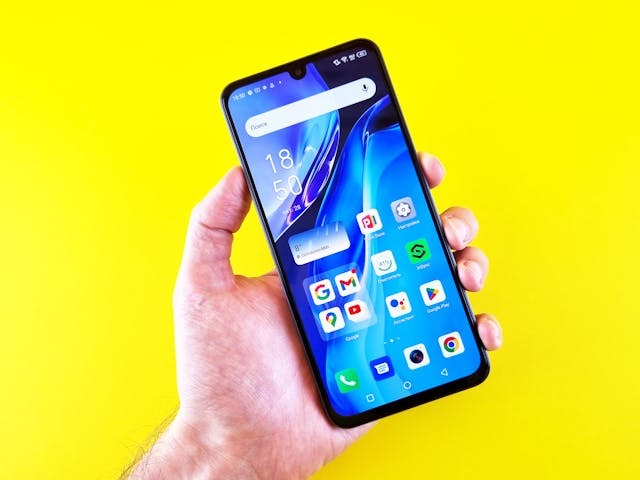
Live wallpapers are GIFs or short videos that stay in the background of your screen. They’re like regular wallpapers, but instead of being static images, they are short videos.
Many people like them because they add a special and personal touch to their phones. In this guide, I will show you how to set a live wallpaper on your phone, whether you have an Android or an iPhone.
What Is a Live Wallpaper on a Lock Screen?
A live wallpaper is an animated wallpaper. It differs from a static wallpaper in that it is not a static image like a JPG but rather a moving image, like a live photo on an iPhone or a GIF or short video. It adds a more dynamic look to your lockscreen. You can even add a short video of yourself or your friends to your wallpaper.
Can You Put a Live Wallpaper on Your Lock Screen?
Yes, absolutely! Android phones support this natively, allowing you to choose from built-in live wallpapers (if available) or your own GIFs and videos that you downloaded from the internet to your gallery or took with your camera.
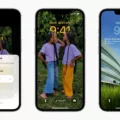
On an iPhone, videos and GIFs are not natively supported, but you can set live photos, which are moving images, as your wallpaper. Live photos are an animated photo format developed by Apple for iPhones. You can take live photos using your built-in iPhone camera.
How to Set a Live Wallpaper on iPhone
You can set a live photo as your wallpaper on iOS 17 and later.
Earlier iOS versions had an option to add a live video that animated when you long-pressed on the lock screen. However, this was removed in iOS 16. Nevertheless, on iOS 17 and later, you can use a live photo from your gallery (but not a video) as a wallpaper.
To set a live photo as your wallpaper on an iPhone, follow these steps:
- Open the Settings app and click on Wallpaper.
- Click on Add New Wallpaper.
- Select Photos and then Live Photo.
- Tap the Live Photo from your gallery that you want to use as a wallpaper.
- Next, customize your Live Photo with the available options.
- Make sure the Play button is on if you want the live photo to start playing automatically when you wake up your phone.
- Click on Add. Next:
- One option is to click on Set as Wallpaper Pair. This sets the live photo as your wallpaper on both your lock screen and home screen (when the phone is unlocked).
- On the other hand, if you want your home screen to have a separate photo, click on Customize Home Screen and select a different photo or live photo as your wallpaper.
Alternatively, you can go to the Photos app, open a live photo, click on the share icon, and then click on Use As Wallpaper. Make sure the live photo icon is enabled.
How to Turn a Video or GIF Into a Live Wallpaper on iPhone

What if you have a GIF or video that you downloaded from the internet and you want to use it as your wallpaper? There is a workaround: Convert it to a live photo first.
Use an app like intoLive from the App Store to convert it to a live photo format. There are also web-based tools like Ezgif.com which you can use.
Then, once the live photo is saved to your gallery, proceed as above to set the new live photo as your wallpaper.
How to Set a Video as a Lock Screen Wallpaper on Android

To set a video as your wallpaper on an Android, long-press on the home screen, click on Wallpapers, and click on “Select from Album.” Then, select the video from your gallery. If you want to first trim the video, click on trim. If you want to customize the wallpaper, click on Customize, after which you can customize both the home screen and lock screen. You can change the clock style, wallpaper and lock screen design, and more, depending on your phone model.
Click on Apply and select whether you want to apply it to your lock screen, home screen, or both.
Alternatively, go to your gallery, find the video and open it, press on the three-dot menu, and click on Set As Wallpaper, and then proceed to customize and apply your wallpaper.
Some phones may also have built-in live wallpapers to select from, or you could use a third-party app like Wallpaper Engine from the Play Store to get live wallpapers, if you don’t have any videos in your gallery you want to use.
Why Your Live Wallpaper Is Not Working
Live wallpapers may not work due to several reasons. If Battery Saver or Low Power Mode is enabled, it might stop the live wallpaper from working, causing it to appear static.
Software glitches, outdated operating systems, and videos that are too long or too short can also be causes. If you have an iPhone, make sure you are using a live photo and not a static image, that the live photo icon and play button are active when setting it as your wallpaper, and that you have iOS 17 or later.
Try restarting your phone, resaving the video as a GIF and (on Android) or as a live photo (on iOS), and updating your operating system.
Does Live Wallpaper Drain Battery?

Yes, live wallpapers usually require more battery usage than regular wallpapers. That’s because it takes more battery energy to play a video over and over again than to display a static image. If your phone has a weak battery, which is common after a couple of years of usage, you will likely notice this more.
It also depends on the video. A simple animation uses up less battery than a more complex video with a high resolution.
If it keeps draining your battery, then consider whether a live wallpaper is worth it, or opt for a lower-quality video or a simpler animation. Or, use an app like Walloop to find live wallpapers optimized for battery performance.
Conclusion
I hope these live wallpaper setup tips were useful! Live wallpapers are an excellent option for personalizing your lock screen and home screen. They add a personal touch to your phone and can make your day just a little bit brighter each time you pick up your phone!
Related posts:
 How To Get The Best Live Wallpapers For IPhone?
  IPhone XR Wallpapers – 33 Tips
  Cute Girly Wallpapers for Your iPhone
  How To Make A Live Wallpaper With Multiple Pictures?
  How to Get Anime Wallpapers on Your iPhone 13?
  How to Customize Your Android Screen with Dynamic Wallpaper?
  How to Set a Live Christmas Wallpaper On Your iPhone?
  Unlock New Visuals with Safari Live Wallpaper
