 Skip to content
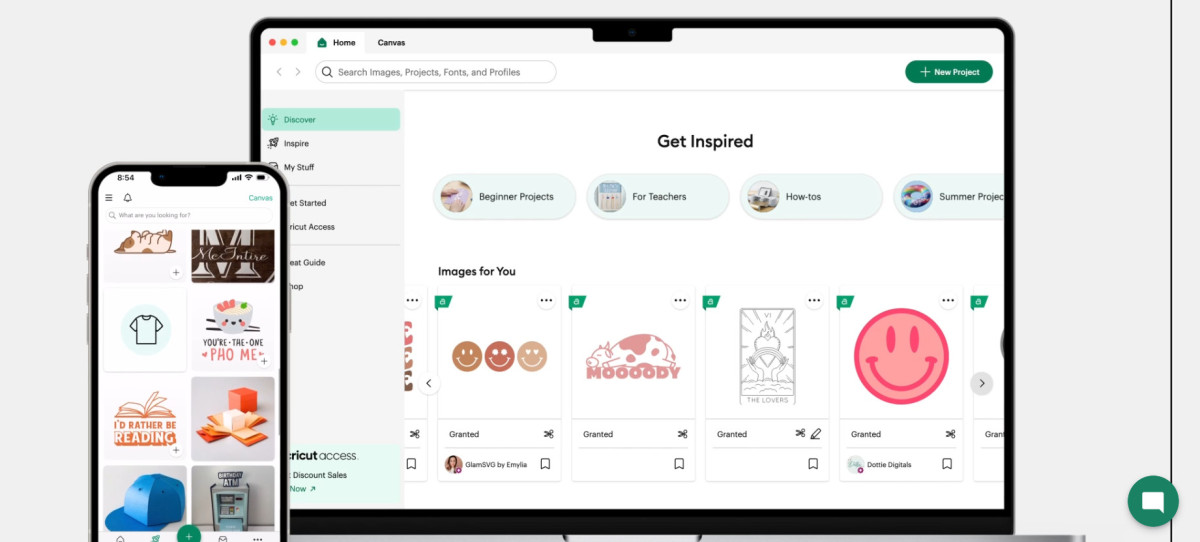
Cricut Design Space is an app from Cricut that allows you to design, cut, create, and draw using your Cricut machine. In this guide, I will show you how to log in to Cricut Design Space using your Cricut ID, whether you are signing in to the Cricut app on desktop or mobile.
Before You Start: Account & Supported Devices
First, though, you will need a Cricut ID and a Cricut machine, such as the Cricut Explore or Cricut Maker machine. You will also need a Windows or Apple desktop or an iOS or Android phone. Finally, you will need a stable internet connection to download the app.
Unfortunately, Cricut Design Space is not supported on Chromebooks or Linux devices.
Install & Sign in on Windows/Mac (Desktop App)
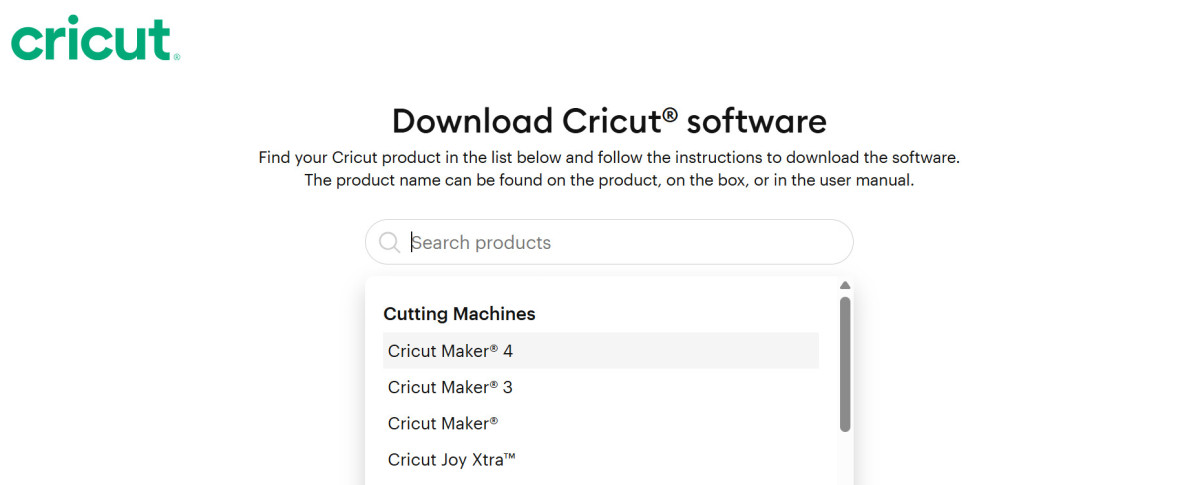
Make sure to select the correct model when downloading the software. Otherwise, it might not work correctly.
If you are using a computer, whether a Windows or Mac computer, follow these steps:
- Using your browser, visit design.cricut.com.
- Search for and select your machine model from the drop-down menu.
- Agree to the terms and conditions.
- Click on Download and wait for the download to complete.
- Once it’s downloaded, open the file on your computer by clicking on it from the downloads folder or the downloads section of your browser and install it. On a Mac, drag it to the Applications folder to prompt installation.
- Wait for it to install. Trust the app if requested by your computer .
- Once it’s installed, sign in with your Cricut ID and password.
- If you do not have a Cricut ID, click on “Create Cricut ID.”
Sign in on an iPhone/iPad or Android
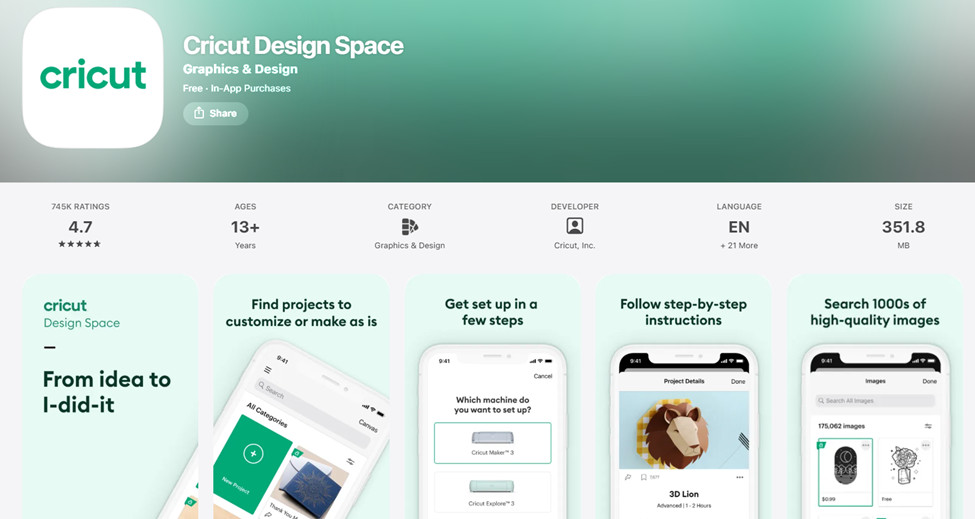
You can download the Cricut Design Space app from the app stores on Android and iOS.
On iOS or Android devices, the process is similar but somewhat different. Here’s how to sign in on your mobile device:
- Open the Play Store or App Store.
- Search for “Cricut Design Space” and download the app. To make sure you are downloading the correct app, look at the app image. It should appear as a blank, white space with the word “Cricut” written inside in green font, in lowercase letters.
- Once it’s installed, click on “Sign In” and sign in with your Cricut ID, or click on Machine Setup.
Reset a Forgotten Cricut ID Password
If you forgot your password to Cricut Design Space, just click on “Forgot Password” when trying to log in. Then, enter your email, and you will be able to reset your password via email. It’s as easy as that!
Fix Login Problems (White Screen, Can’t Sign in, Crashes)
If you can’t log in, or if the Design Space app is displaying a white screen, try these tips:
- Make sure you have a stable internet connection.
- Turn off your VPN, if you have one.
- Force close the app.
- Restart your computer or phone.
- Uninstall and reinstall the Cricut Design Space.
- Make sure your operating system and the app are up to date.
- Ensure you don’t have an antivirus software blocking the app.
- Close other applications that may be causing your computer to freeze.
Pair Your Machine After Login (USB/Bluetooth)
After logging in to your account, you should also make sure you connect your Cricut machine to your device. You can do that via Bluetooth pairing or by using a USB connection. Note that Cricut Joy and Cricut Joy Xtra only support Bluetooth connections and not USB connections.
If you have a Mac or Windows, you can simply pair it via USB, using the USB cable that comes with your Cricut machine. If your Mac doesn’t have a USB-A port, though, you will need an adapter. Your machine should show up automatically in the Cricut Design Space app once connected via the USB cable.
Alternatively, you can connect via Bluetooth. Your Cricut machine needs to be powered on and within Bluetooth range of your computer.
On Windows, go to Settings > Bluetooth & devices > Add Device and select Bluetooth. It will search for your Cricut machine. Once it appears (it may come up as an audio device), click on it to pair it. If your computer asks for a pairing code, enter 0000. Only certain old Cricut machines will require this code.
On a Mac, go to Apple menu > System Preferences > Bluetooth. Turn it on and select your Cricut machine from the list. If it asks for a code, enter 0000.
If you have an Android or iPhone, you can only pair via Bluetooth, not via USB. Go to your Bluetooth settings, turn on Bluetooth, and select your Cricut machine from the list. Enter 0000 if it asks for a pairing code.
Conclusion
I hope this guide was helpful! Connecting a Cricut device to your computer or phone is pretty easy. You can log in to Cricut Design Space using your Cricut ID and password and start creating designs in a few minutes!
Related posts:
 Can You Engrave Your Apple Watch Band with Cricut
  Troubleshooting Cricut Design Space Download Issues on Mac
  Kohls Fitbit
  How To Clear Bluetooth Cache ?
  27 Scanned Items Questions Solved
  Does Ring Doorbell Work With Apple Homepod ?
  Troubleshooting Tips for When Your Shift Key Not Working
  How To View Text Messages On Icloud